




How Do You Hide Residential FFLs on the Checkout Map? Automatic FFL's New Setting
Control your checkout map with Automatic FFL’s new residential-dealer filter. See how it works, where it is available, and what to consider.
Giancarlo Byrne
11/05/2026
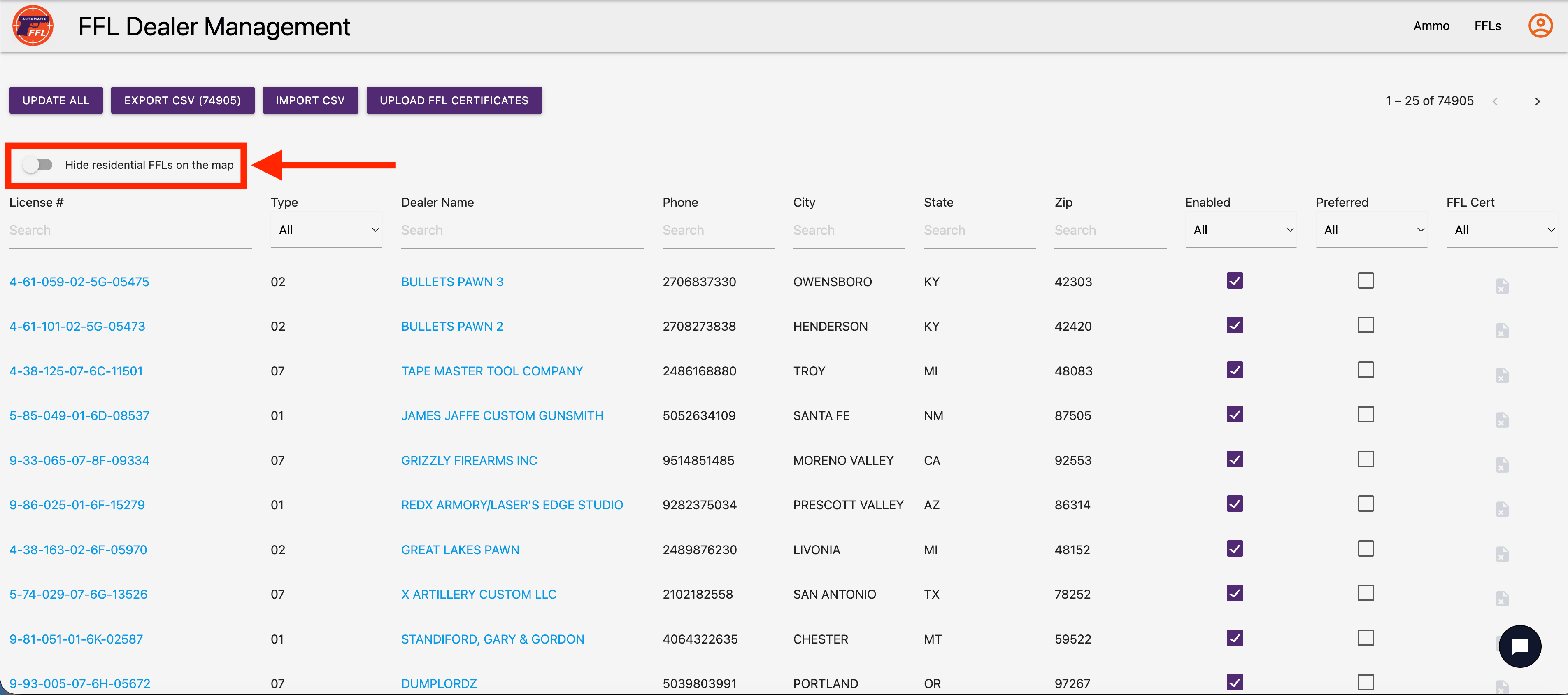
How do you keep residential-labeled dealers off the Automatic FFL checkout map your shoppers see? Automatic FFL now includes a merchant setting for that. On the FFL Dealer Management page, turn on Hide residential FFLs on the map. Residential-labeled dealers then stay off the customer-facing map, so you can emphasize non-residential-address listings when that fits how you want checkout to look.
The store decides. This is a map-presentation control for merchants, not a shopper setting.
What shoppers already see
Automatic FFL’s customer map already labels residential dealers. Per the documentation, dealers identified as operating from a home or another residential location show a Residential Address label. They remain available when they otherwise qualify for your enabled list, and they appear after non-residential dealers in the default results. You can still enable or prefer a residential dealer; those controls stay yours. The label simply gives shoppers more context before they pick a transfer destination.
What the new setting adds
Hide residential FFLs on the map sits on the FFL Dealer Management page, above the dealer table. When the toggle is on, residential-labeled dealers are kept off the map your shoppers see.
That gives you direct control over map presentation. Possible benefits include a cleaner map focused on business-address listings, or a map that better matches shoppers who prefer a non-residential address. The feature gives you a presentation choice, not a promise of higher conversion. A non-residential label does not prove a listing is a retail storefront.
Why this matters at checkout
Firearm checkout maps often mix business-address dealers with home-based dealers. Some shoppers prefer to complete a transfer at a non-residential address. If your store wants the map to emphasize those listings, this setting lets you make that map-presentation choice.
Leave the setting off if you want residential-labeled dealers to keep appearing with the existing label and sort order. Either way, shoppers still choose a receiving FFL inside checkout, which remains the core job of Automatic FFL on stores that ship firearms to dealers rather than to the buyer’s door. For the broader checkout picture, see selling firearms online on BigCommerce, WooCommerce, or Magento.
How to turn it on
- Open Automatic FFL and go to the FFL Dealer Management page.
- Find the Hide residential FFLs on the map toggle above the dealer table.
- Turn the toggle on.
Availability
The setting is available on BigCommerce and WooCommerce. The Magento / Adobe Commerce rollout is pending as of November 5, 2026. If you are unsure about your site, contact Automatic FFL, email service@automaticffl.com, or call 469-207-1149.
Limits to keep in mind
Use the toggle as a presentation choice, with a few practical limits:
- Home-based businesses can hold valid FFLs. A residential classification does not mean a dealer is unlicensed, lower quality, unwilling to transfer, or without hours, and it does not invalidate a license.
- Dealers that remain on the map are not guaranteed to accept transfers or keep walk-in hours.
- Hiding residential-labeled listings may reduce nearby choices on the map.
- Address labels can be inaccurate or outdated. If a dealer looks misclassified, contact Automatic FFL support.
Try it on your store
If you already run Automatic FFL on BigCommerce or WooCommerce, open FFL Dealer Management and look for Hide residential FFLs on the map. If you are evaluating Automatic FFL, you can start a 30-day free trial. You are not charged until the trial ends, and you can cancel before then.
This article is general product information, not legal advice.