Choose Your Platform
Start with the integration built for your store.





Start with the integration built for your store.
Free tool for online FFL merchants
Create a free Automatic FFL account to answer dealer questions faster, search dealer data updated with the ATF every day, click FFL numbers through to EZ Check, and mark dealers as enabled or preferred for your own custom lists.
Merchant operations
Online FFL merchants run into the same dealer questions every week: is this the transfer dealer the buyer meant, what is the license number, where is the store, do we have a certificate path, and should this dealer be part of checkout? Daily ATF-updated dealer data gives your team one place to work through those questions.
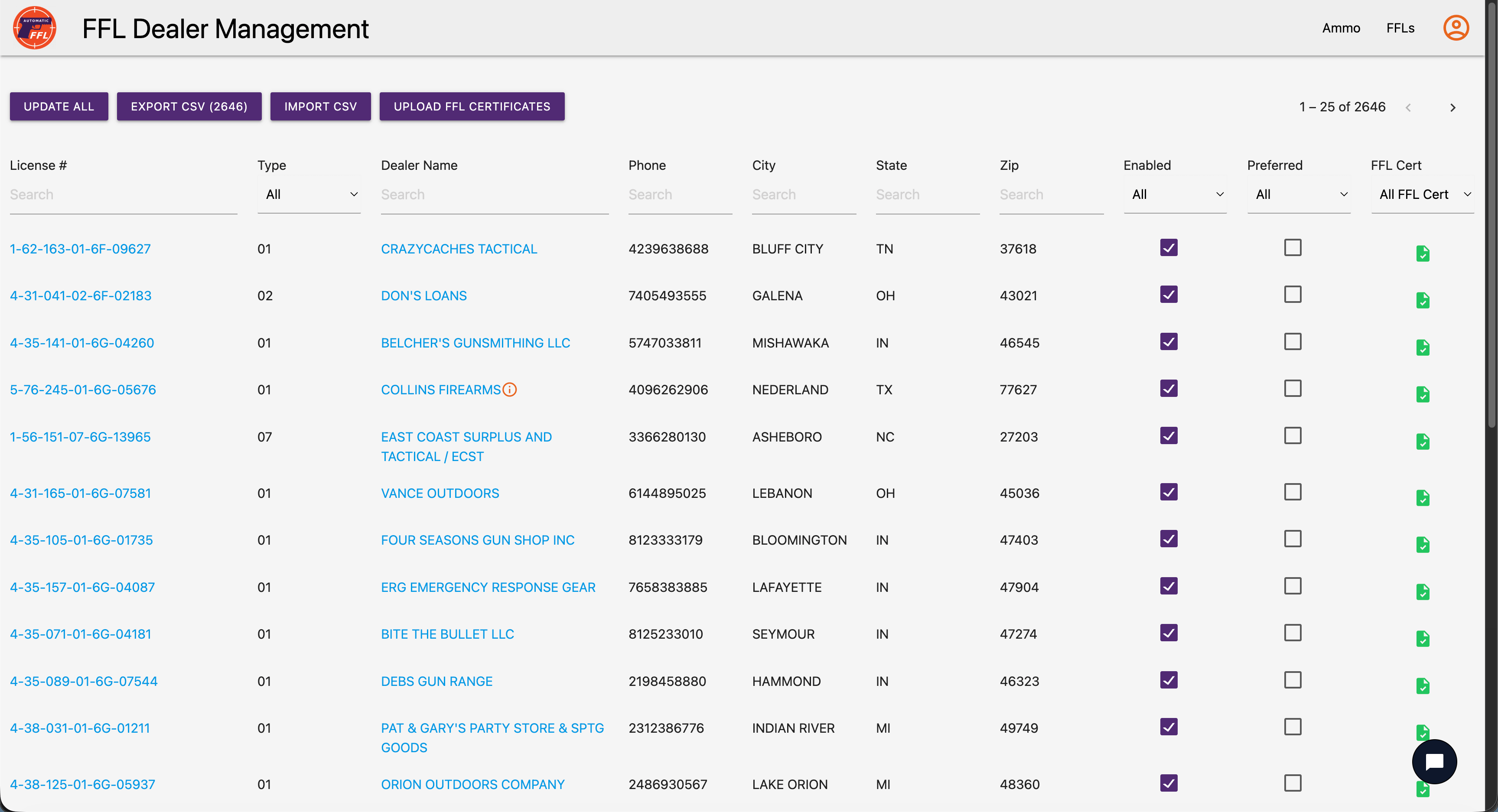
Search by license number, dealer name, phone, city, state, or ZIP when a buyer asks about a transfer dealer, your team needs a transfer address, or you want to open the dealer's EZ Check record before shipment.
Mark dealers as enabled or preferred so your team has two separate ways to organize known transfer partners, regional dealer lists, high-volume locations, and future checkout preferences.
Use CSV export when you need a filtered dealer list for internal review, store setup, bulk updates, fulfillment handoff, or transfer-partner cleanup.
What you can filter
License number, type, dealer name, phone, city, state, ZIP, enabled status, preferred status, and certificate status are visible where order support and fulfillment teams can actually use them. The database is updated with ATF data daily, and each FFL number links to that dealer's EZ Check lookup.
The free database is useful before a sale, while researching transfer options, while building the dealer list your team wants to use, and when fulfillment needs daily ATF-updated dealer details without searching across systems.
Look up a dealer by FFL number, work from records updated with ATF data daily, click through to EZ Check, and review the license type attached to the record.
Filter by dealer name, city, state, and ZIP when a shopper gives a partial dealer name or asks for transfer options near a destination.
Keep contact details next to the dealer record when your team needs to confirm receiving details or coordinate a transfer handoff.
Use two separate markers to build a dealer list around your transfer partners, regional needs, and future checkout priorities.
Identify dealers with certificate data available so fulfillment teams can see where follow-up may be lighter.
Export filtered results or use the list to support launch prep, dealer cleanup, internal review, and post-launch updates.
How it helps merchants
The database is not just a directory. It helps your team research transfer options, answer support questions, prepare dealer lists before checkout is connected, and hand cleaner dealer information to the people fulfilling FFL orders.
Search daily ATF-updated coverage by state, city, and ZIP so you can see the dealer landscape before connecting checkout or importing a dealer list.
Use Enabled and Preferred to shape the dealer list around stores you know, regions you serve, and partners you want to prioritize.
Open EZ Check from the FFL number, confirm dealer details, and keep support from hunting across tabs.
Export filtered lists and keep dealer preferences current as customers, markets, and transfer relationships change.
Custom dealer lists
Enabled and Preferred are simple controls, but they let online FFL merchants turn a national dealer database into a working transfer network for their own storefront.
Mark dealers as enabled when they should be part of the list your team uses. This can support regional transfer lists, vetted partners, known receiving dealers, or the dealers you want available when checkout is connected.
Mark dealers as preferred when they are your best transfer partners, high-volume locations, stores with smoother certificate handling, or dealers you want your team and shoppers to notice first.
Start with a free account, search the database, then mark dealers for the way your store actually works. Use Enabled for the list and Preferred for the dealers you want to prioritize.
Create a Free AccountFrom lookup to checkout
The free database is useful for internal lookup. Automatic FFL turns the same dealer workflow into platform-native checkout for online firearms and ammo stores.
Automatic FFL for WooCommerce supports classic checkout, block checkout, Save For Later mixed-cart flows, ammo state rules, and dealer certificate data.
See WooCommerce install guideAutomatic FFL for BigCommerce supports custom checkout, mixed-cart consignments, ammo state rules, dealer controls, and FFL data on orders.
See BigCommerce install guideAutomatic FFL for Adobe Commerce and Magento supports FFL dealer selection, product-level FFL requirements, Google Maps lookup, and dealer management.
See Magento install guideAutomatic FFL Ammo for Shopify applies merchant-selected state rules, lets buyers choose a dealer on an interactive map, and adds FFL information to the order.
See Shopify solution overviewReady to let shoppers select FFL dealers during checkout instead of using the database only as an internal lookup tool?
Create a free Automatic FFL account, find dealers, filter the list, mark enabled and preferred dealers, and move faster when dealer lookup slows down your online firearms store.
Create a Free AccountNeed dealer selection inside checkout? See WooCommerce, BigCommerce, Adobe Commerce / Magento, or Shopify Ammo.