Mixed carts ship to the right destinations
FFL-required products route to the selected dealer, while eligible regular items ship to the customer’s address. Magento’s multiple-address checkout creates separate orders for each destination.
Start with the integration built for your store.






Automatic FFL for Magento & Adobe Commerce
Automatic FFL lets customers choose a receiving dealer during Magento and Adobe Commerce checkout. Firearms and ammo requiring an FFL use the dealer’s shipping address, and the dealer’s information is saved on the order.
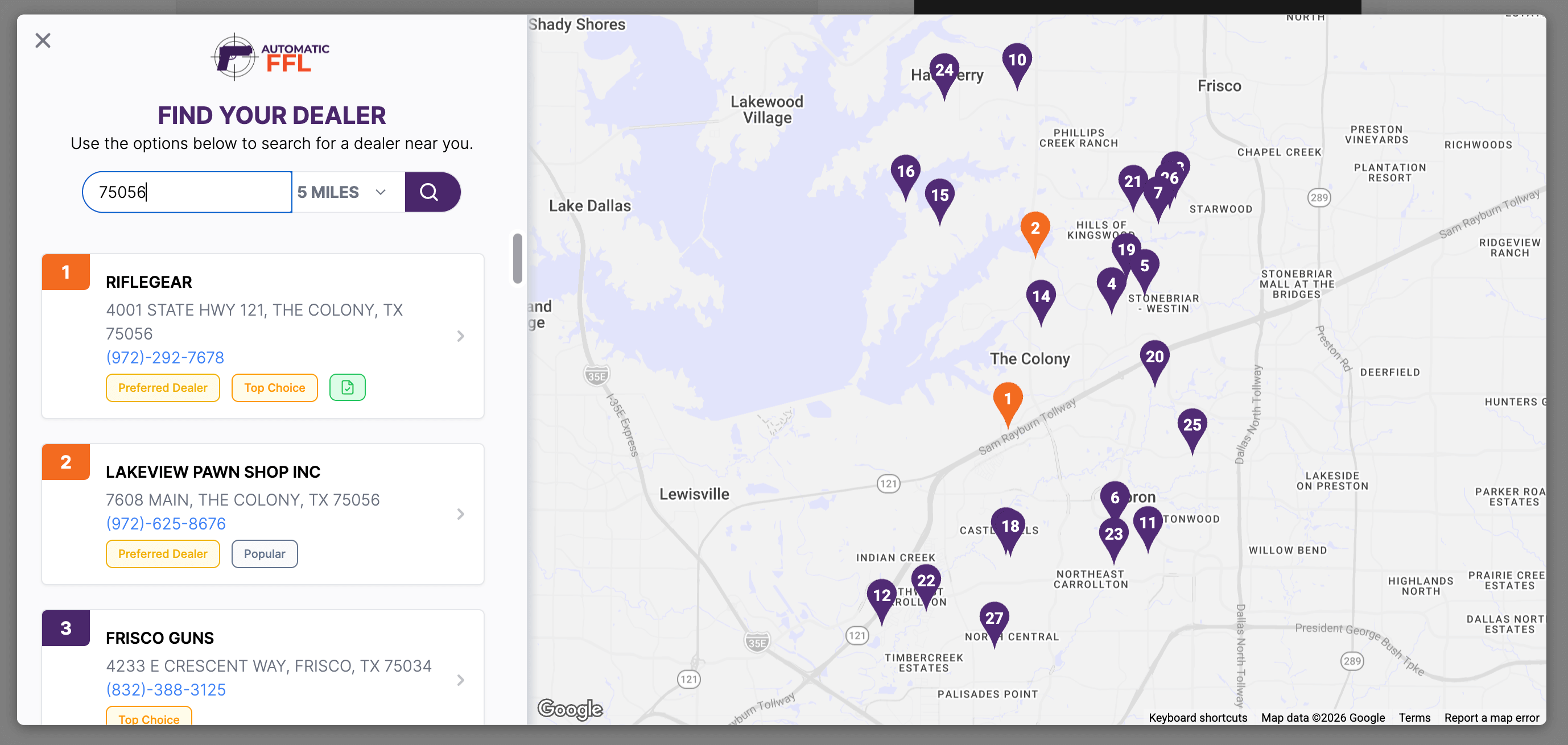
Your dealer network
Our dealer database uses ATF records. In your Automatic FFL dashboard, you can enable or disable dealers and mark preferred FFLs for your store.
Checkout operations
FFL-required products route to the selected dealer, while eligible regular items ship to the customer’s address. Magento’s multiple-address checkout creates separate orders for each destination.
The Magento order includes the dealer’s license, expiration date, ATF eZ Check link, and available certificate link. Automatic FFL also adds these details to the order comments.
Ammo can be flagged separately from firearms, with restricted-state rules that trigger dealer selection only when the order needs it.
Mixed carts
Here, firearms and FFL-required ammo share the dealer shipment. The other products ship to the customer’s address.
Ammunition
Ammo acts as either a regular product or an FFL-required product, depending on the customer’s selected destination state.
Inside your Magento admin
Under Sales > Orders, the order’s Information tab groups the dealer details in one table.
The same information also appears in a comment under Notes for this Order.
Getting started
After your developer installs the extension with Composer, create your Automatic FFL store, connect Magento, mark your products, and run a test checkout.
Create an account or sign in, then create the Magento store you want to connect.
Add the Store Hash, Store Secret, and Google Maps API key in Magento, then enable Automatic FFL.
Mark categories as Firearms or Ammo, with the FFL Required product attribute available for individual firearms.
Place a test order to confirm dealer routing, shipping destinations, and FFL data on the order.
Dealer information, fulfillment tools, and Magento settings in one integration.
Access scanned certificates from thousands of dealers across the Automatic FFL network, reducing follow-up emails and certificate chasing.
Badges show which FFLs customers select most often and most recently. Residential Address labels identify dealers operating from a home.
Use Magento’s multiple-address checkout so regular items go to the customer’s address, or send non-gun items to the selected FFL with the firearms.
Upload your collection through the Automatic FFL dashboard. Matching orders get the certificate link while it is valid and unexpired.
Add transfer fees and store hours to dealer listings so customers can compare options before choosing an FFL.
Our American team understands FFL sales and works with you to meet your store’s needs.
Automatic FFL uses Magento’s standard and multiple-address checkout. Turn off Instant Purchase and, for Adobe Commerce, AsyncOrder; these checkout options aren’t supported. If your store uses a custom checkout or theme, contact us to review it before installation. The installation guide covers the required setup.
Yes. The extension adds an FFL Required product attribute for marking individual firearms, including through bulk updates. Category settings take priority over that attribute. See marking your products for the setup details.
Yes. If the key has website restrictions, allow https://static.automaticffl.com/*, where the dealer map loads. The Google Maps setup instructions also cover sandbox use.
Yes. Choose the correct store-view scope in Magento’s configuration and use the Store Hash and Store Secret for the matching Automatic FFL store. See configuring the extension.
Follow the installation guide to start your 30-day free trial.