AutomaticFFL(tm) | AutomaticFFL for BigCommerce | FFL Checkout, Ammo Rules & Order Compliance

AutomaticFFL × BigCommerce

FFL-compliant checkout for BigCommerce.

AutomaticFFL adds a dealer step to your custom checkout. Firearms ship to the dealer, accessories ship home, ammo rules apply.
  • Mixed-cart consignments
  • Ammo state rules
  • FFL certs & EZ Check
  • Dealer controls
  • Official App Store install
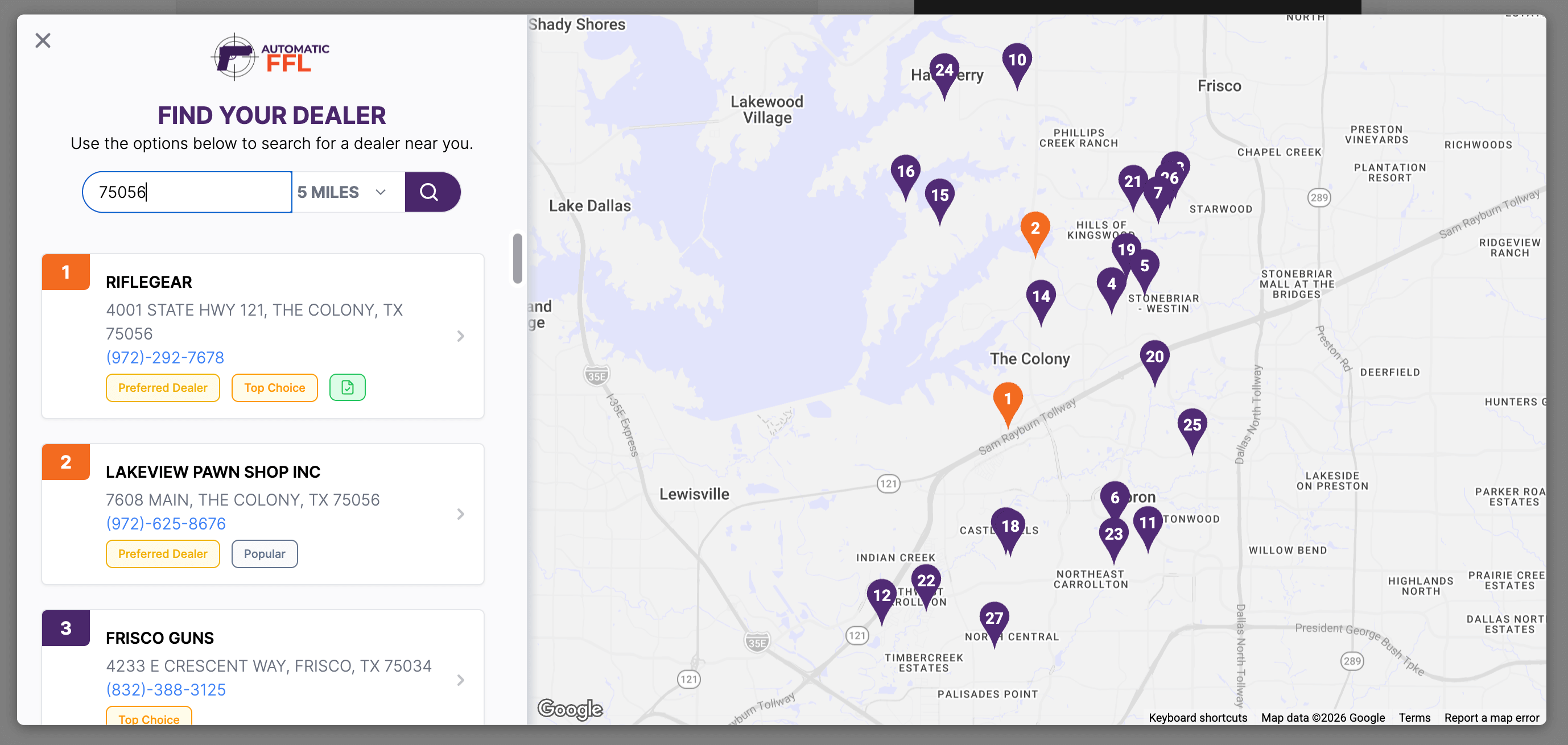
AutomaticFFL dealer locator at checkout — search by ZIP and radius, ranked dealer cards with Preferred Dealer and Top Choice badges, and a Google map with numbered dealer pins highlighting popular options.

Checkout operations

The three jobs your BigCommerce FFL checkout has to get right.

Mixed carts become correct consignments

Firearms route to the selected FFL while eligible accessories ship to the shopper. One BigCommerce order, one payment, the right shipping destinations.

Compliance data lands on the order

Selected FFL license, expiration, EZ Check, and certificate links can append to BigCommerce order comments before submission.

Ammo Support

Ammo can be flagged separately from firearms, with restricted-state rules that trigger dealer selection only when the order needs it.

Dealer network control

An FFL database your team can manage.

ATF-synced dealers are the baseline. Preferred status, enabled dealers, certificate availability, fees, and storefront routing controls are what reduce support work after checkout.
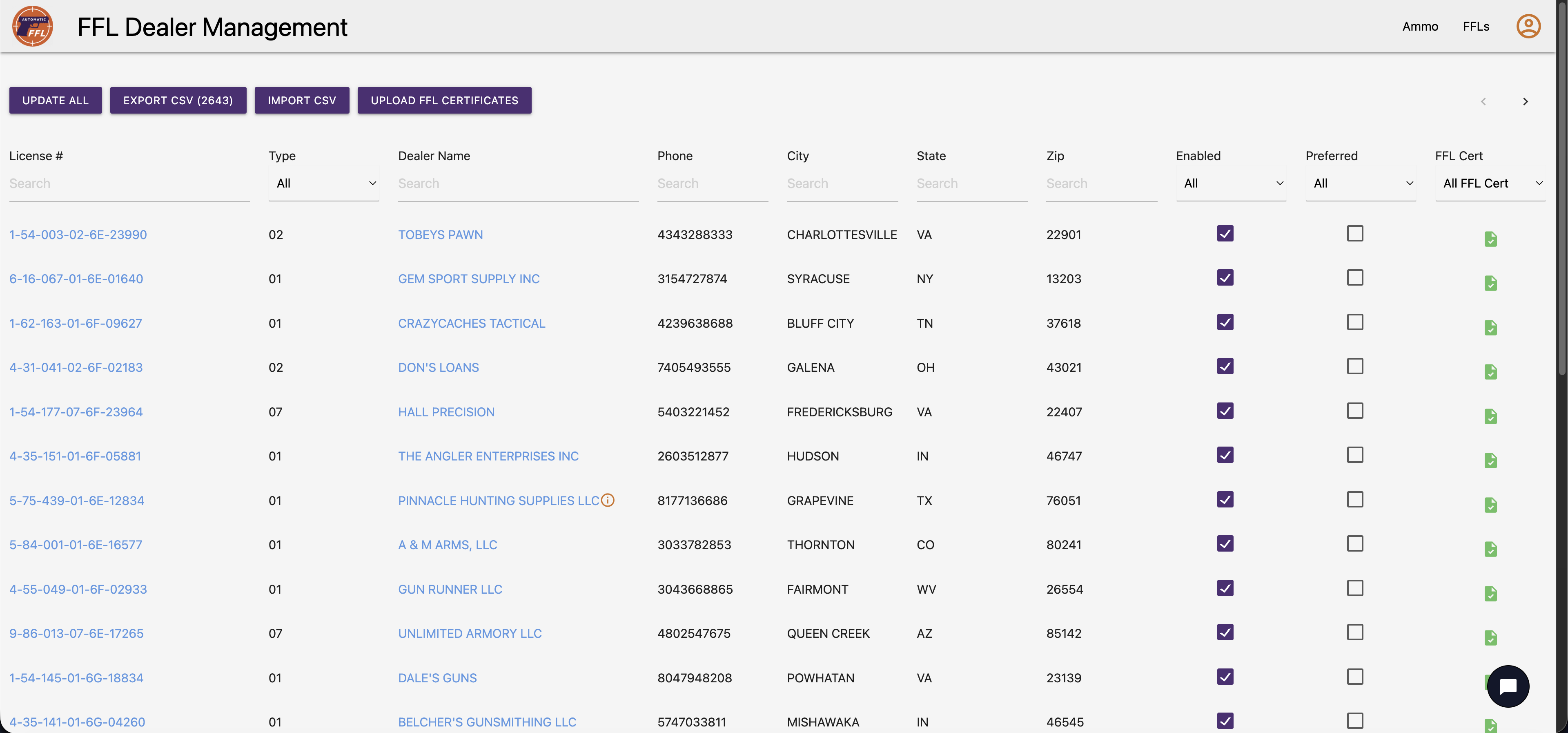
AutomaticFFL Dealer Management screen showing the merchant-facing dealer database with tens of thousands of FFL dealers — searchable by license number, name, city, state, ZIP, with Enabled, Preferred, and FFL Cert columns.

Live in 5 minutes.

Standard setup. No developer required.

1

Install

Get the app from the BigCommerce App Store.
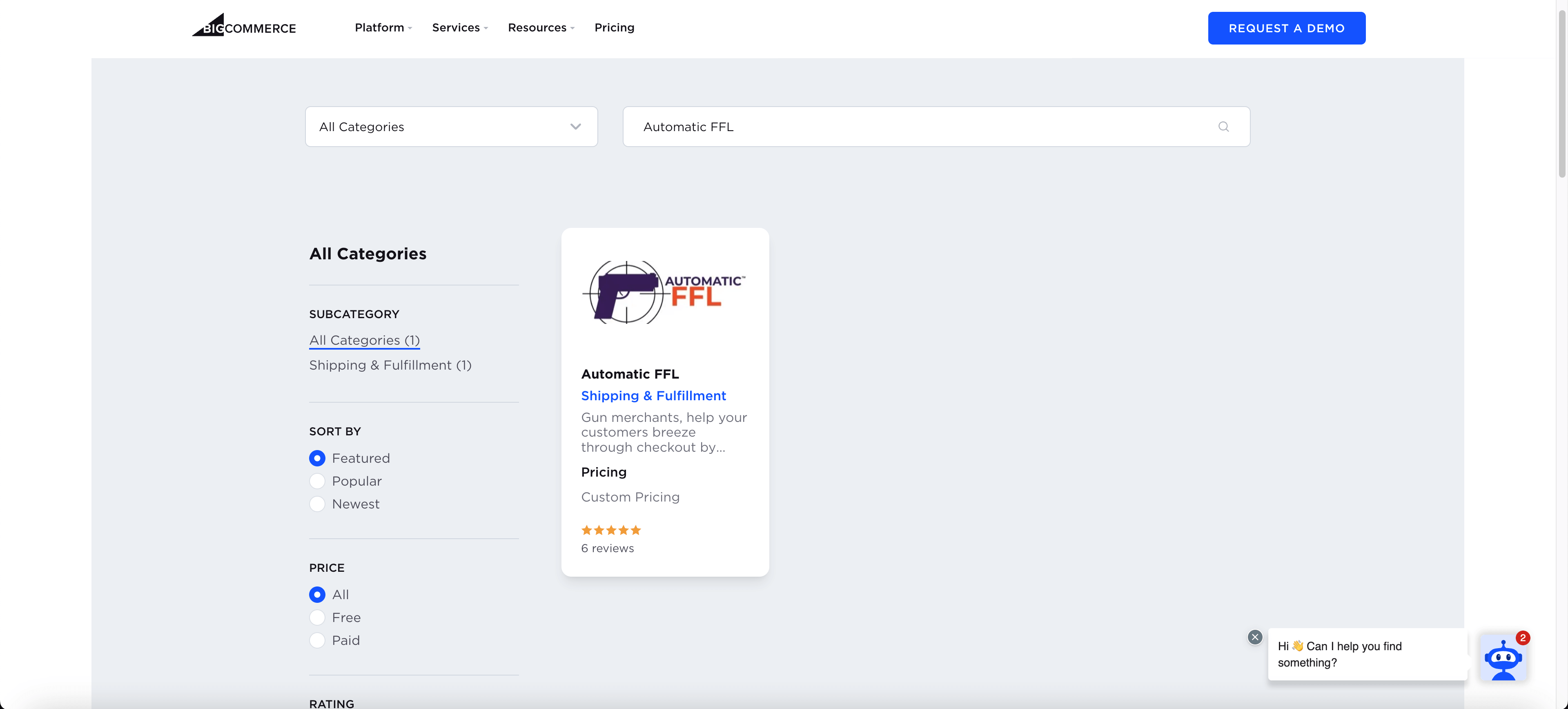
BigCommerce App Store search showing AutomaticFFL.
2

Add the checkout script

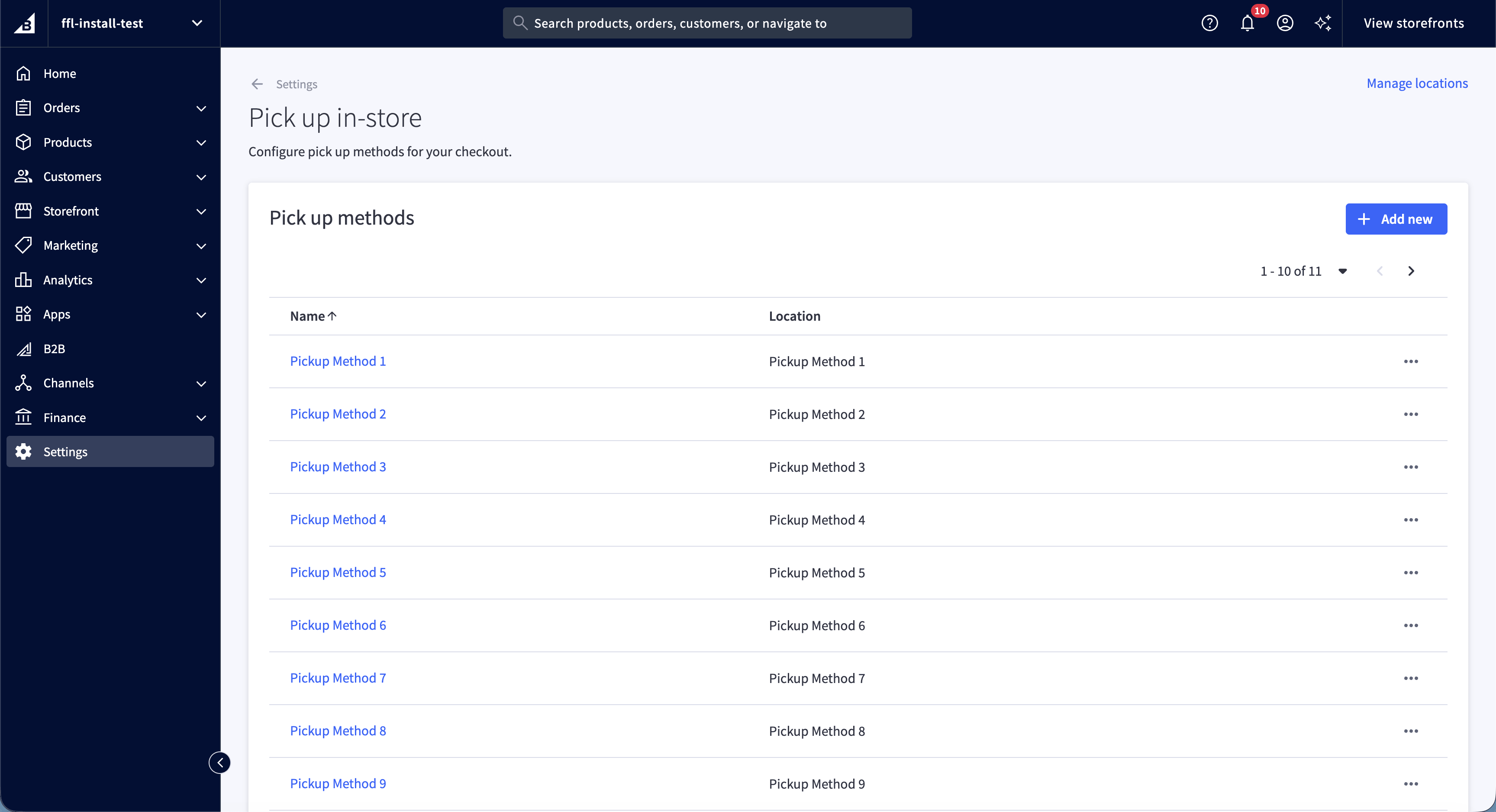
Paste our checkout script URL into Settings → Checkout → Custom Checkout.
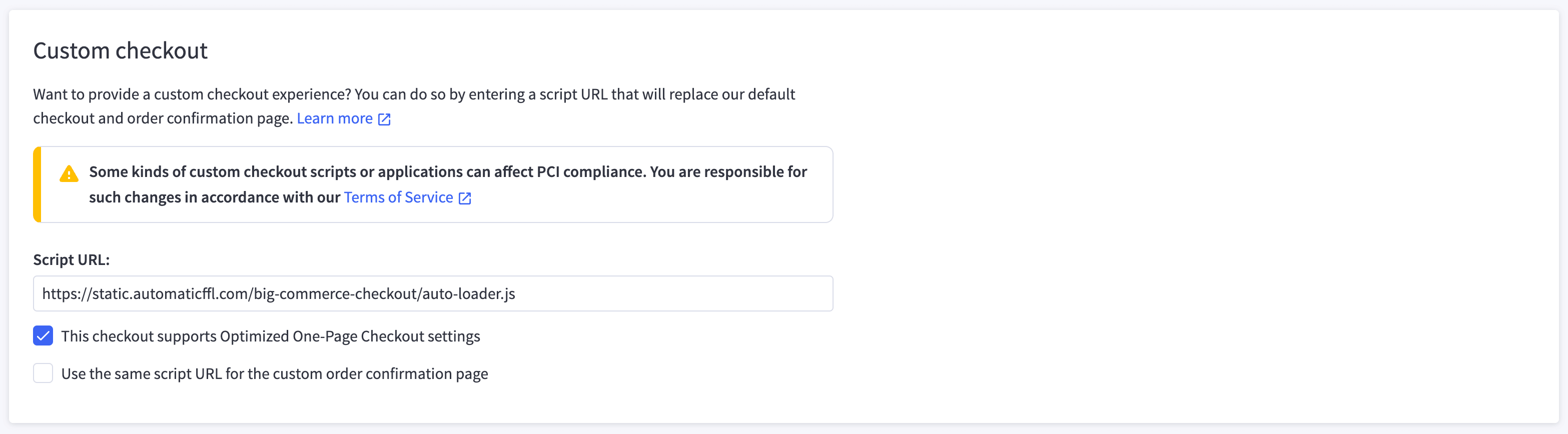
BigCommerce checkout settings with the AutomaticFFL custom checkout script URL pasted in.
3

Flag products

Mark FFL categories in the AutomaticFFL dashboard, or add an ffl_type custom field per product. Bulk edit works.
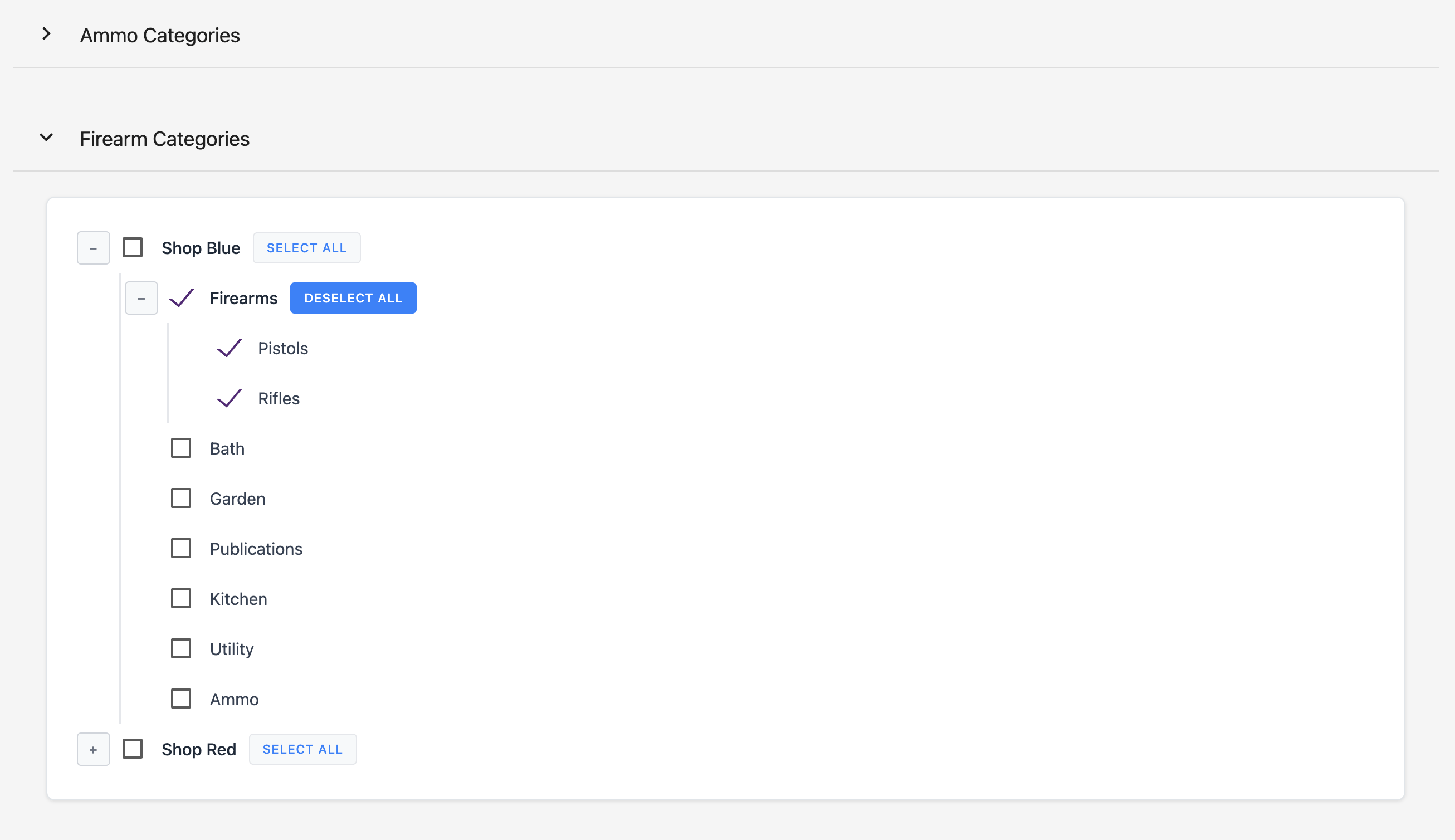
AutomaticFFL category tree showing BigCommerce categories marked as Firearms or Ammo.
4

Confirm order data

Run a test order, then confirm the dealer route and FFL data appear where your team fulfills orders.
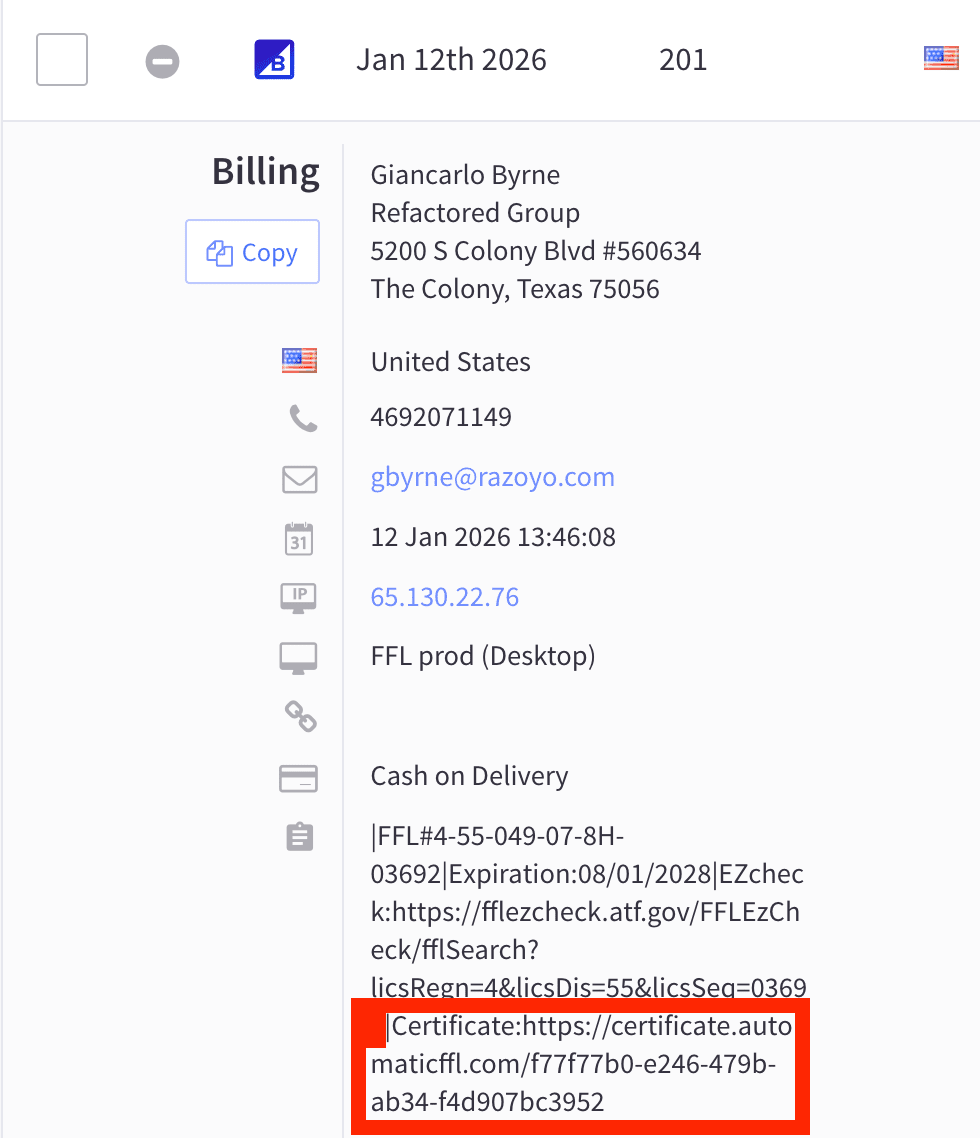
BigCommerce order detail showing the AutomaticFFL dealer route and attached FFL certificate data.

The BigCommerce details that matter after launch.

Checkout behavior, catalog controls, and order data in one integration.

Custom checkout script

Loads the FFL dealer step through BigCommerce's custom checkout flow, with Optimized One-Page Checkout support configured.

Automatic FFL detection

Analyzes the cart and triggers dealer selection only when FFL-required or restricted ammo items need it.

Per-product ffl_type field

Mark FFL-required, ammo, or standard at the product level via custom fields.

Category-level FFL marking

Flag whole BigCommerce categories at once, not just one SKU at a time.

Bulk edit & import

Flag FFL status across an existing catalog using BigCommerce's bulk-edit tools.

Mixed-cart consignments

Firearms route to the dealer, eligible products route to the customer, and checkout stays one order.

Per-state ammo rules

Restricted-state ammo can trigger the FFL workflow even when the cart does not include a firearm.

Order comments with FFL data

Selected dealer license, expiration, EZ Check, and certificate links can be appended before order submission.

FFL certificate network

Thousands of dealers have scanned FFLs on file, reducing post-checkout emails and certificate chasing.

Daily ATF sync

Dealer records stay current against ATF source data, with active status visible to your team.

Preferred dealer controls

Search, filter, enable, and prefer dealers so customers see the transfer partners you want them to use.

Manual FFL path

Support edge cases with bypass/manual FFL handling when a buyer needs a dealer outside the normal flow.

Common questions from BigCommerce merchants.

Do I need a developer to install AutomaticFFL on BigCommerce?
No. Standard setup does not require a developer. The app installs from the BigCommerce App Store; configuration is pasting our checkout script URL into Settings → Checkout → Custom Checkout, then marking FFL categories or products. Stores running their own custom checkout work may want a developer involved — the typical install does not.
Does the BigCommerce install need a Google Maps API key?
No. The BigCommerce integration does not require you to provision your own Google Maps API key — the dealer locator’s map is hosted by AutomaticFFL.
What's the difference between your full FFL database and the FFL certificate network?
Two things, both included. The full FFL database covers every active FFL in the country, synced daily from ATF records — your customers can ship to any of them. The FFL certificate network is a subset of thousands of those dealers for whom we already have scanned FFL certificates on file. When a customer picks an in-network dealer, certificate and license details can travel with the order. No emails or faxes to chase.
Does this work with BigCommerce's Optimized One-Page Checkout?
Yes. AutomaticFFL is loaded through BigCommerce’s custom checkout script flow, with the This checkout supports Optimized One-Page Checkout settings option enabled. Customers see the dealer-selection step inside the checkout rather than being sent to a separate cart or external form.
What FFL data appears on the BigCommerce order?
When order-comment attachment is enabled, AutomaticFFL can append the selected dealer’s FFL license number, expiration date, EZ Check link, and certificate link before the order is submitted. That gives the team fulfilling the order the dealer details they need without searching through checkout session data.
What if I'm already running a custom checkout script?
You’d swap to ours, since BigCommerce supports a single custom checkout script per store. If you have customizations in the existing script you want to preserve, talk to us during the trial — same-day support is included while you set up.
How are mixed carts (FFL items plus regular items) handled?
BigCommerce supports multiple shipping consignments on a single order, and AutomaticFFL uses that natively. When a cart contains both FFL-required items and standard products, the FFL items are routed to the customer’s selected dealer and the standard items ship to the customer’s own address — both as part of one continuous checkout, one order, and one payment. No second cart, no follow-on session.
How do you handle ammo, including state-by-state rules?
Ammo is handled at the product level and the state level. You can flag ammo separately from firearms, and the workflow supports per-state ammo rules so restricted-state ammo can route to an FFL where required.
How long does setup typically take?
For a standard catalog: install from the App Store, paste the checkout script URL, mark FFL categories or products, and run a test checkout. From install to test order in one sitting is the realistic expectation.
What happens after the 30-day free trial?
The 30-day trial gives you the full BigCommerce integration to evaluate. After the trial, the integration moves onto the standard AutomaticFFL plan. A payment method is added at install time and is not charged until the trial ends.

Start your BigCommerce free trial.

30 days free. $75/month after the trial. Same-day support included while you set up.

Start the Trial

Or read the install guide first.