




Default List of Enabled FFLs
Automatic FFL enables all type 1, type 2, and type 7 FFLs by default, minus Big Box stores. However, this is fully customizable. See FFL Management.
As type 1, type 2, and type 7 FFLs are added to the ATF’s database, they will be automatically enabled for the merchant.
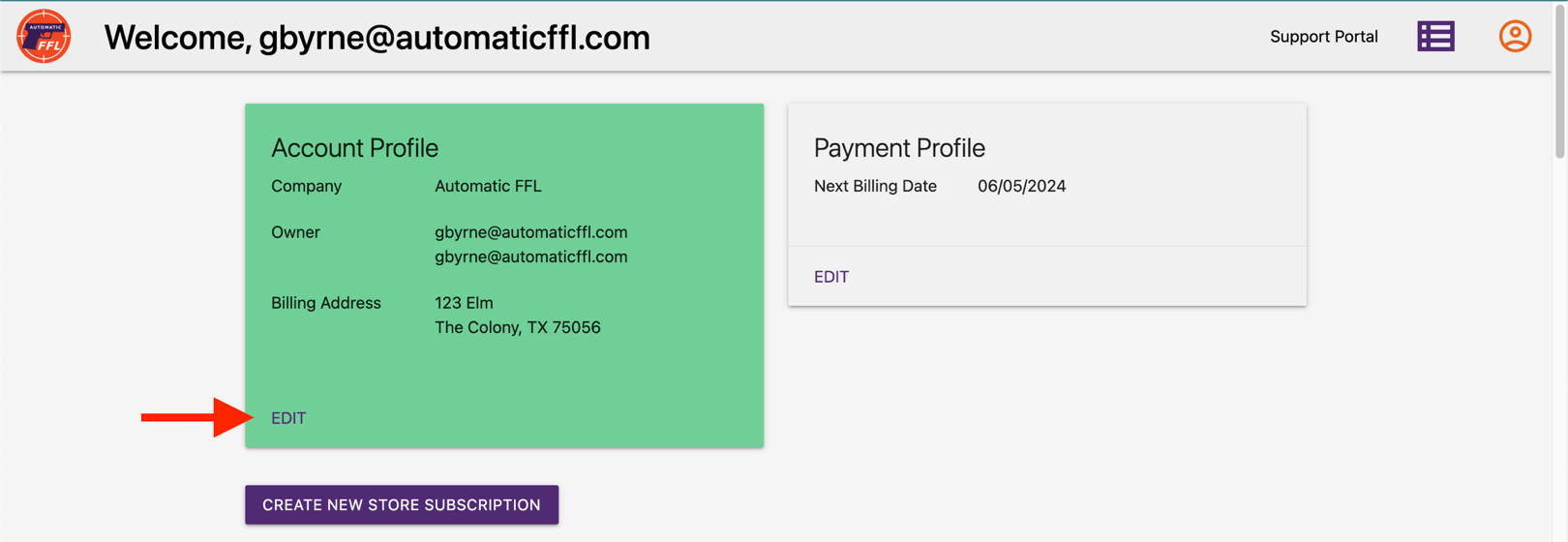
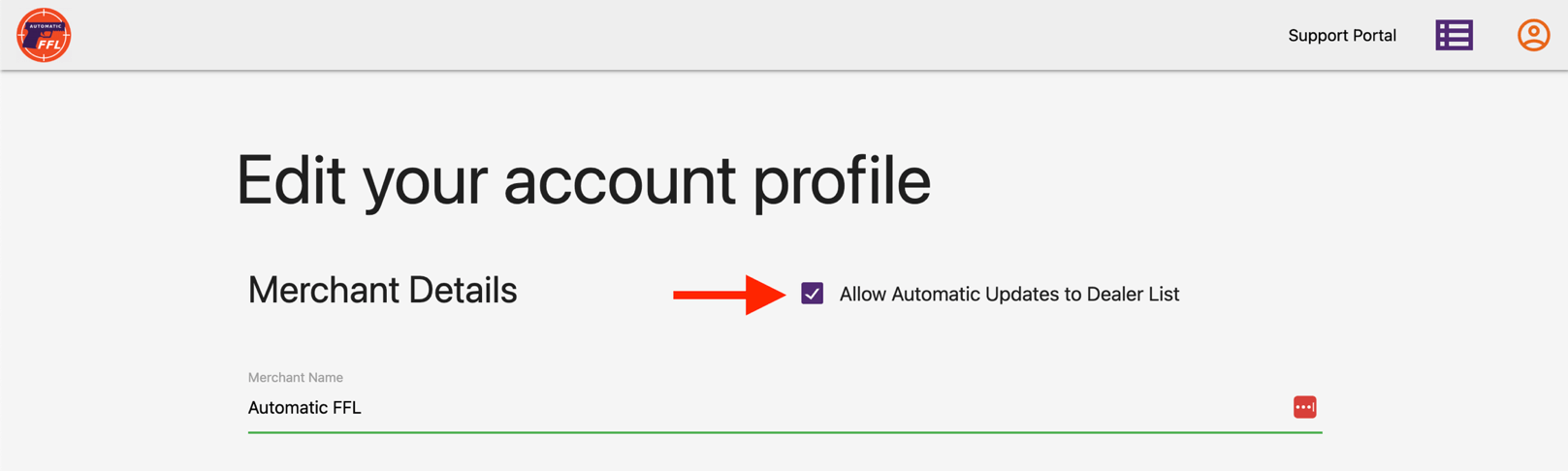
If you’d like to disable this feature, from within Automatic FFL’s admin, go to your Account Profile and uncheck the box Allow Automatic Updates to Dealer List.
Automatic FFL excludes common large retailers and national chains from the default enabled list. The maintained rules account for retailer-name variations and can change as chains rename or consolidate.
You can still customize your enabled and preferred dealers from FFL Management.
Current list of excluded retailers
- Walmart
- Cabela’s
- Bass Pro Shops
- Academy Sports
- Dick’s Sporting Goods
- Gander Outdoors and Gander RV
- Rural King
- Sportsman’s Warehouse
- Big 5 Sporting Goods
- Dunham’s Sports
- Fleet Farm
- Turner’s Outdoorsman
- Field & Stream
- Scheels
- Orscheln
- Bi-Mart
- Camping World
- L.L.Bean
- Sportsman’s Den
- Kittery Trading Post
- Jay’s Sporting Goods
- C-A-L Ranch
- Sportsman’s Guide
- Farm and Home Supply
- Farm King
- Backroads Armory
- Atwoods
- Big R
- Bomgaars
- Buchheit
- Coastal Farm & Ranch
- Family Farm & Home
- Murdoch’s Ranch & Home Supply
- North 40 Outfitters
- Runnings
- Theisen’s
FFL Management
You as the merchant have full control as to what FFLs you’d like to show on Automatic FFLs map (enable) and which FFLs you’d like to feature (prefer).
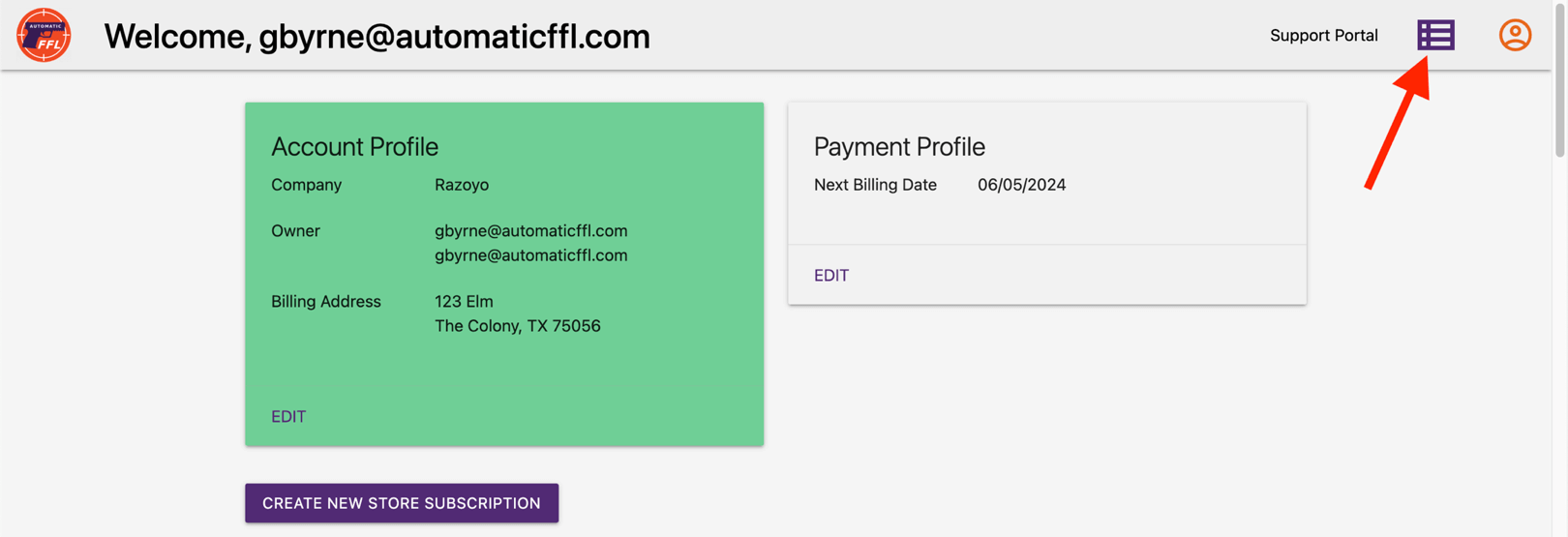
To manage your FFLs, go to the Automatic FFL admin and click on the purple box in the top right corner of the page.
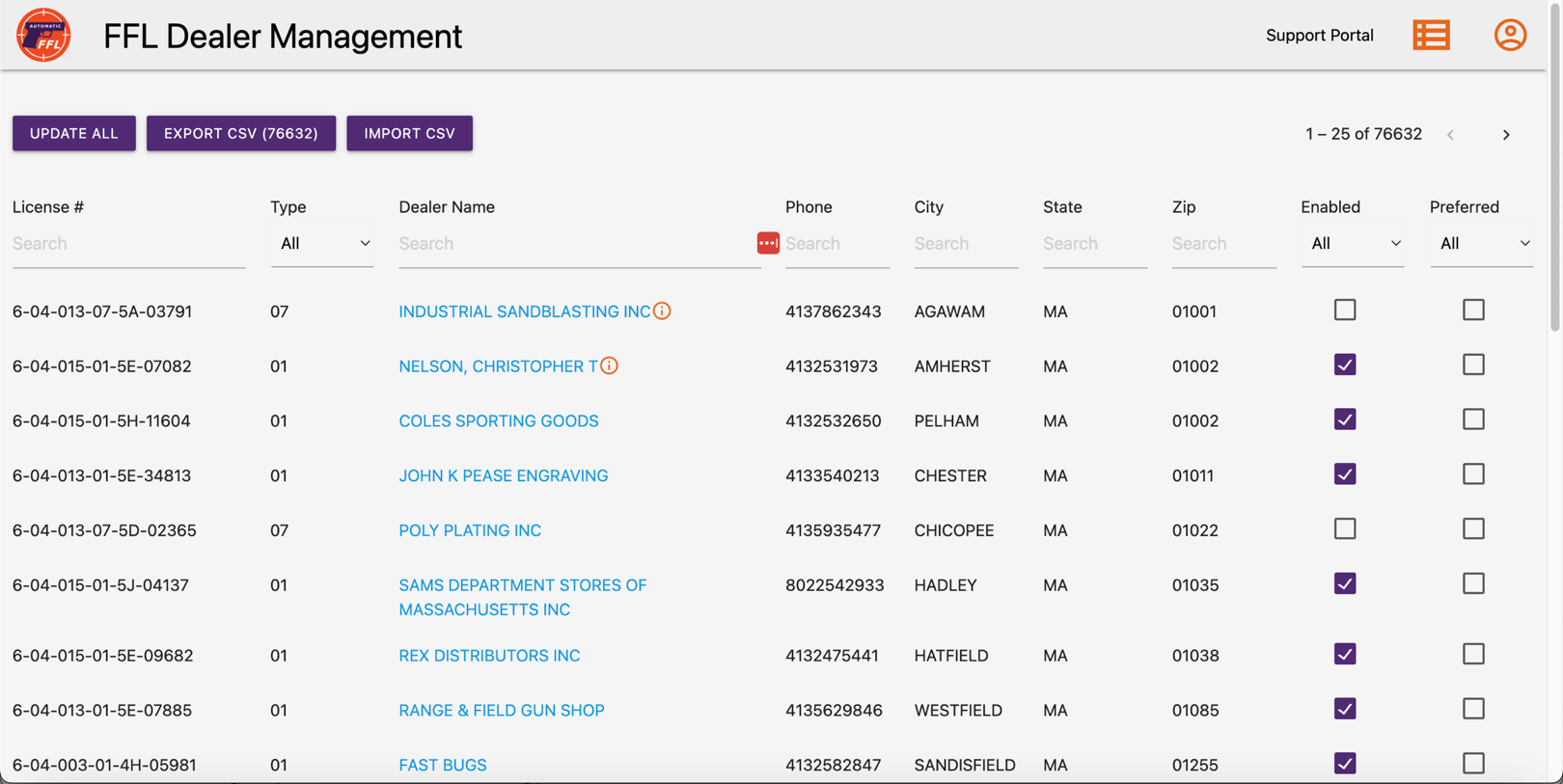
On this page you are able to filter the available FFLs by any combination of the search terms at the top of the page.
Once you find the FFLs you are looking for, you can Enable them (puts them on your map) or Prefer them (makes them stand out on the map and puts them at the top of the list) by clicking on the check boxes. The changes will automatically save.
You can also update an FFL’s fees or store hours by clicking on the FFL’s name. Make sure to click the Save button at the top of the modal.
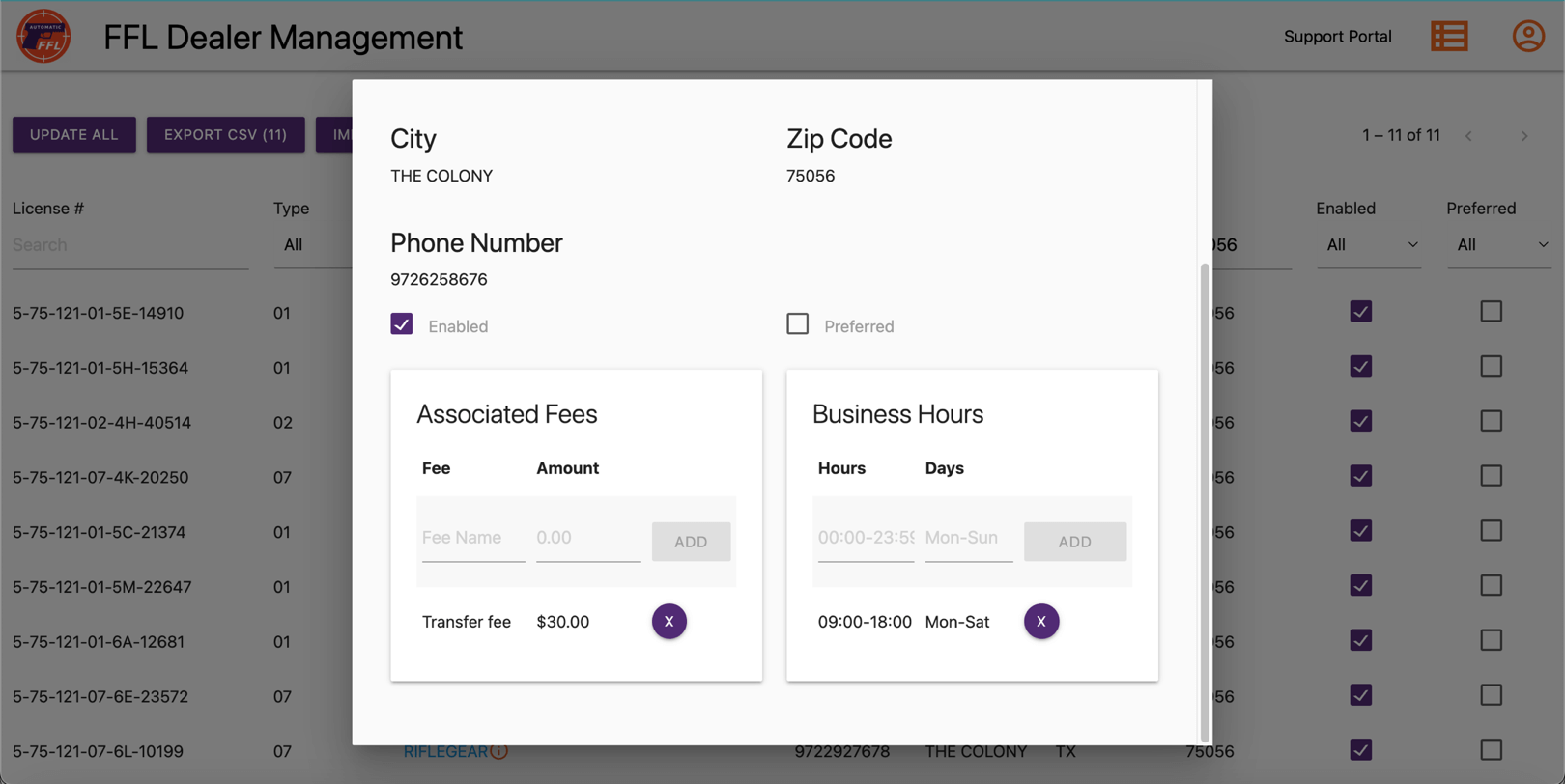
Once changes are made to an FFL, a red icon will appear next to its name to indicate that changes have been made.
Residential Dealers
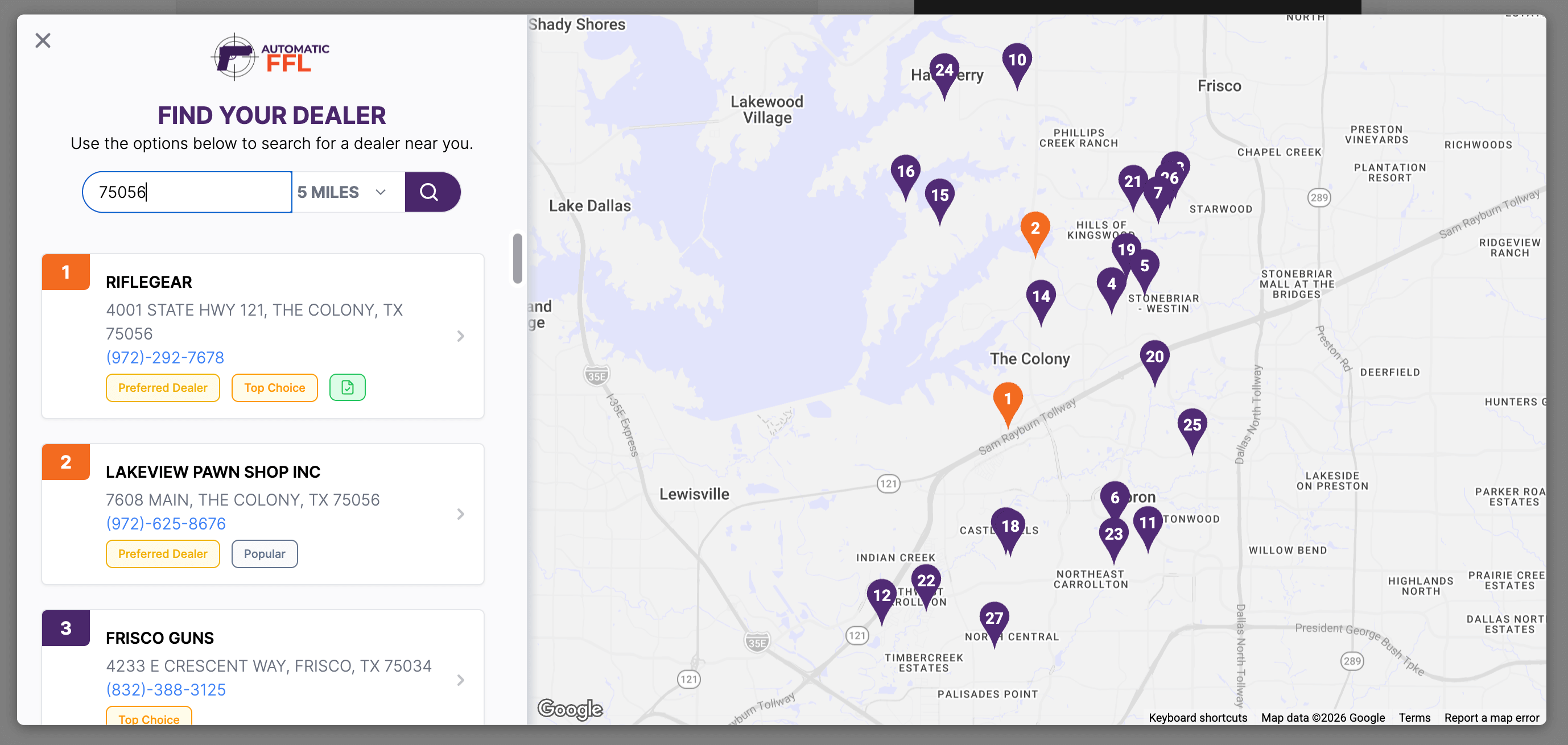
Dealers identified as operating from a home or another residential location display a Residential Address label on the customer-facing map. Residential dealers remain available when they otherwise qualify for your enabled list, but they appear after non-residential dealers in the default results.
You can still enable or prefer a residential dealer. Preferred and enabled settings remain under your control; the label gives customers more context before they choose a transfer destination.
Uploading FFL Certificates
BigCommerce, WooCommerce, and Shopify
As a merchant, you can upload FFL certificates you have in your collection to Automatic FFL.
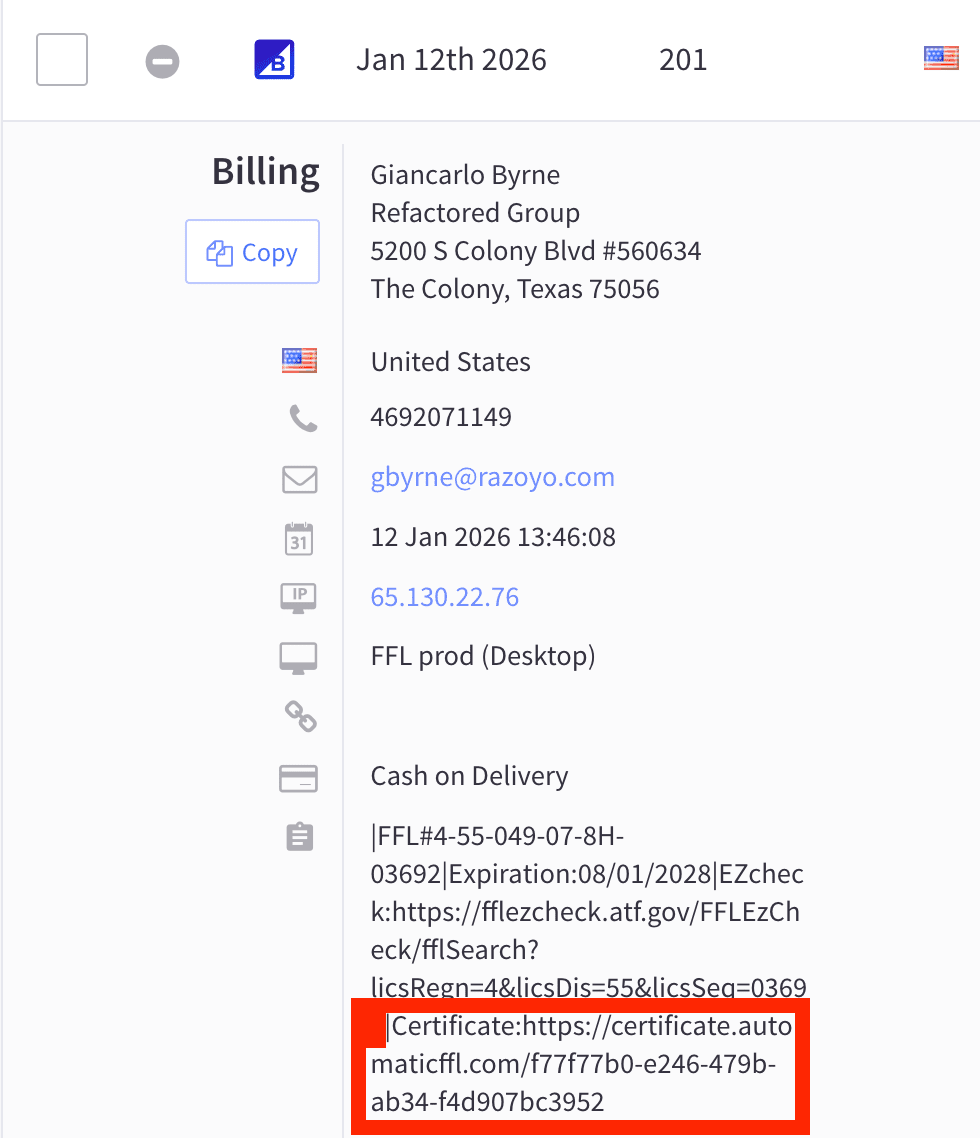
Available certificate links are included with FFL order details on BigCommerce, WooCommerce, and Shopify. BigCommerce merchants turn this on with Include FFL Info in Order Comments. WooCommerce adds the link to the order note automatically, while Shopify adds it to the order note and Automatic FFL order metafields automatically.
Automatic FFL will only include a certificate on an order if the certificate is valid and hasn’t expired. This includes certificates from other merchants using Automatic FFL.
How It Works
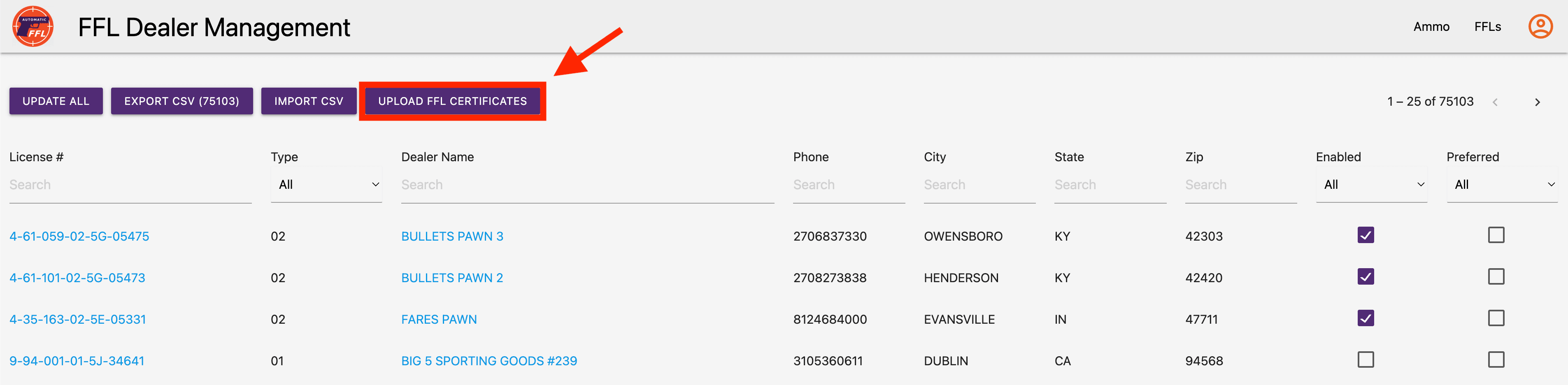
Open the Automatic FFL app and click on FFLs in the top right corner, or click this link.
You will see a new button for uploading FFL certificates. We support zip files and image files.
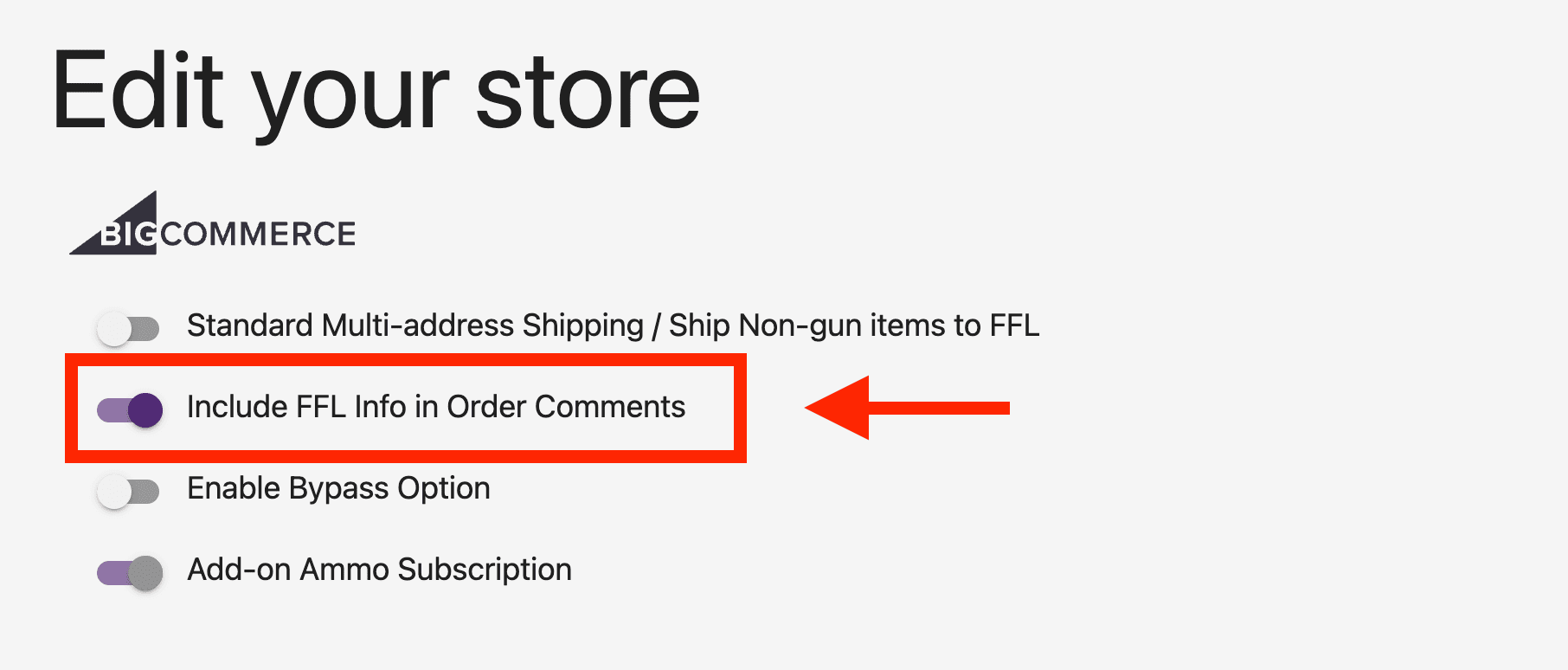
BigCommerce only: After uploading, return to the Automatic FFL homepage, click Edit on your store, and turn on Include FFL Info in Order Comments. Click Save at the bottom of the page.
WooCommerce and Shopify add the available certificate link to the order automatically. No store setting is required.
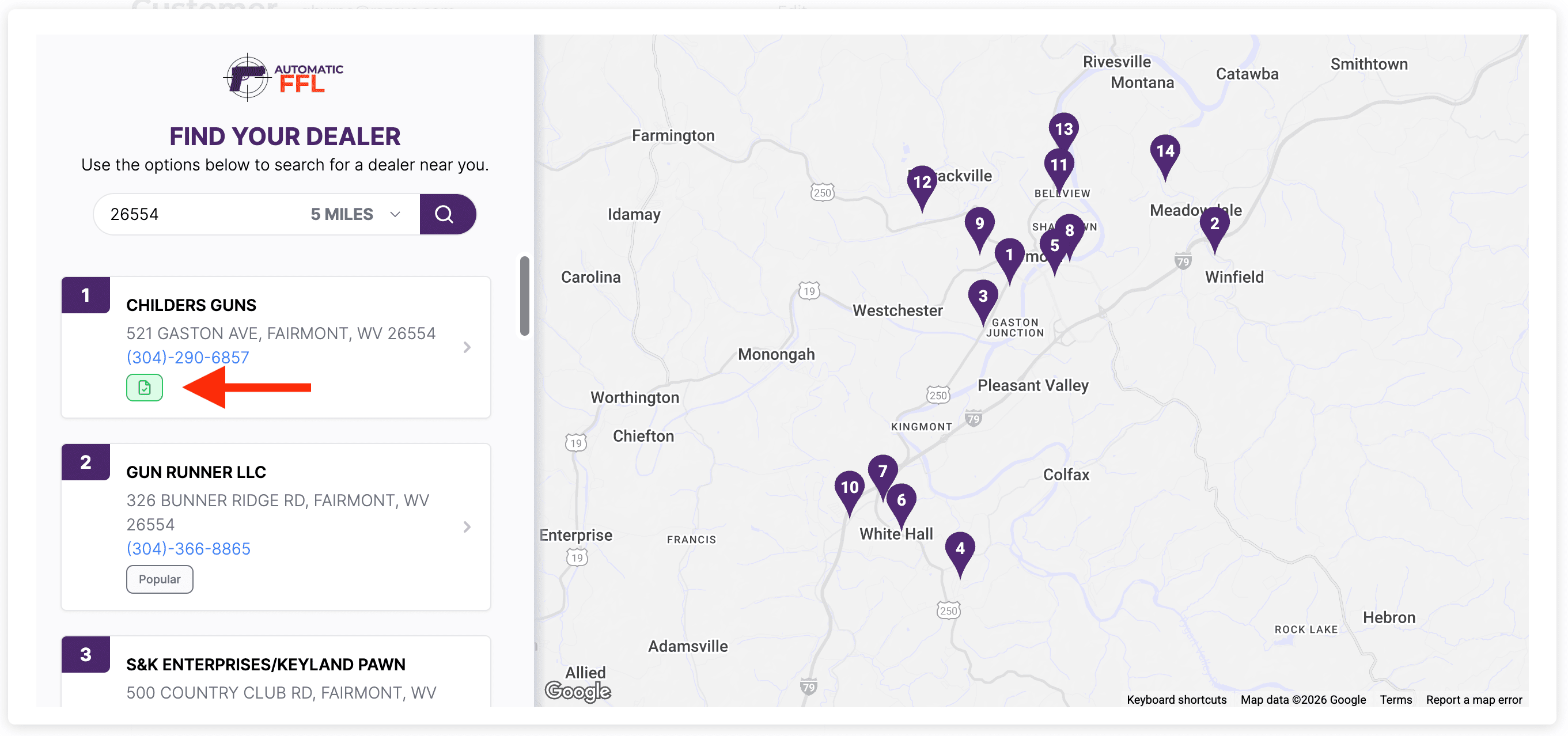
In network FFLs will appear with a green icon on the map and will appear higher in search results.
Once an order is placed, you will see a link attached to your order. This link can be used to download the certificate and will not expire.
Bulk Updates
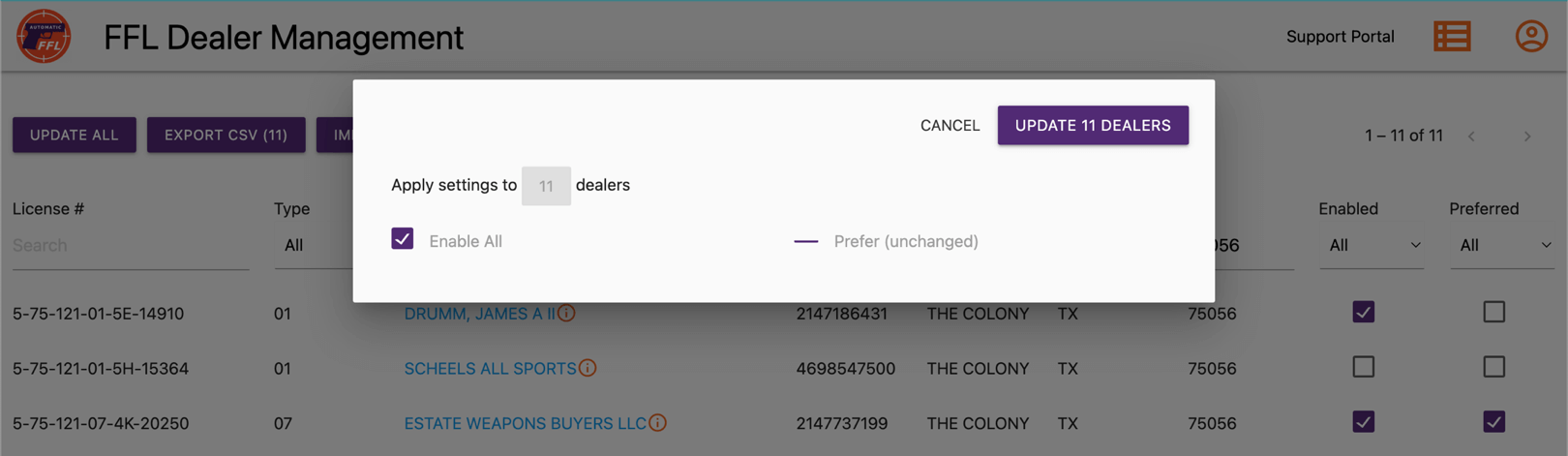
To make changes to all of the FFLs you have filtered, click the Update All button at the top of the page. From within the modal, you can assign a value to the Enabled and Preferred values for all of the FFLs within your search results.
Export / Import Bulk Updates
More granular bulk updates can be made by doing an export of FFLs, configuring them, then importing them back into Automatic FFL. You can modify the values for Enabled, Preferred, fees, and store hours through an export / import.
You cannot add FFLs or change core FFL information through this process. All FFLs can be exported or you can filter down to a list of FFLs you’d like to export.
Store Specific Features
Map Message
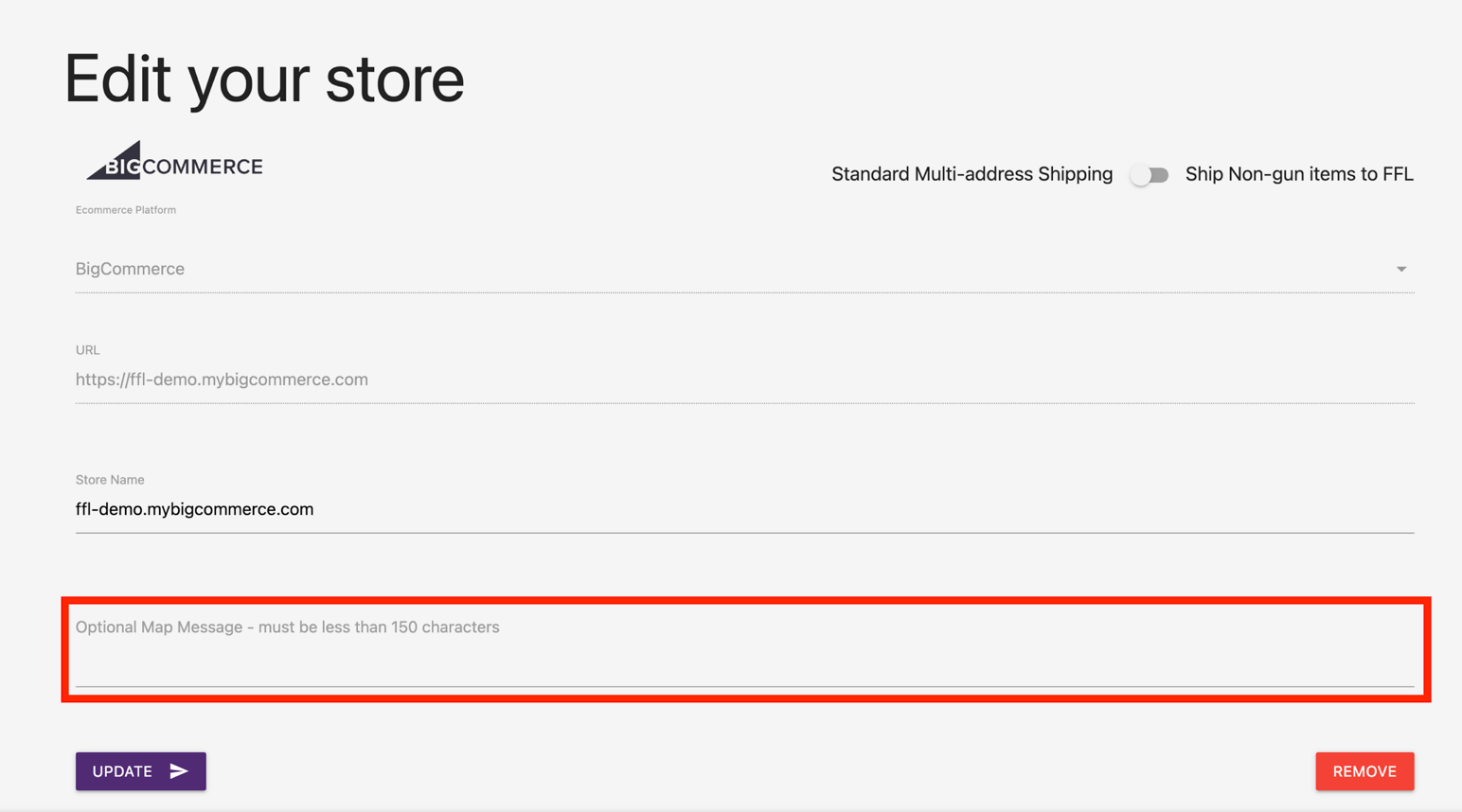
You can add a message to Automatic FFL’s map by going to the Automatic FFL admin and clicking Edit on your store. There is an input field at the bottom of the page to add your message.
Ship All Items To FFL
BigCommerce and Shopify
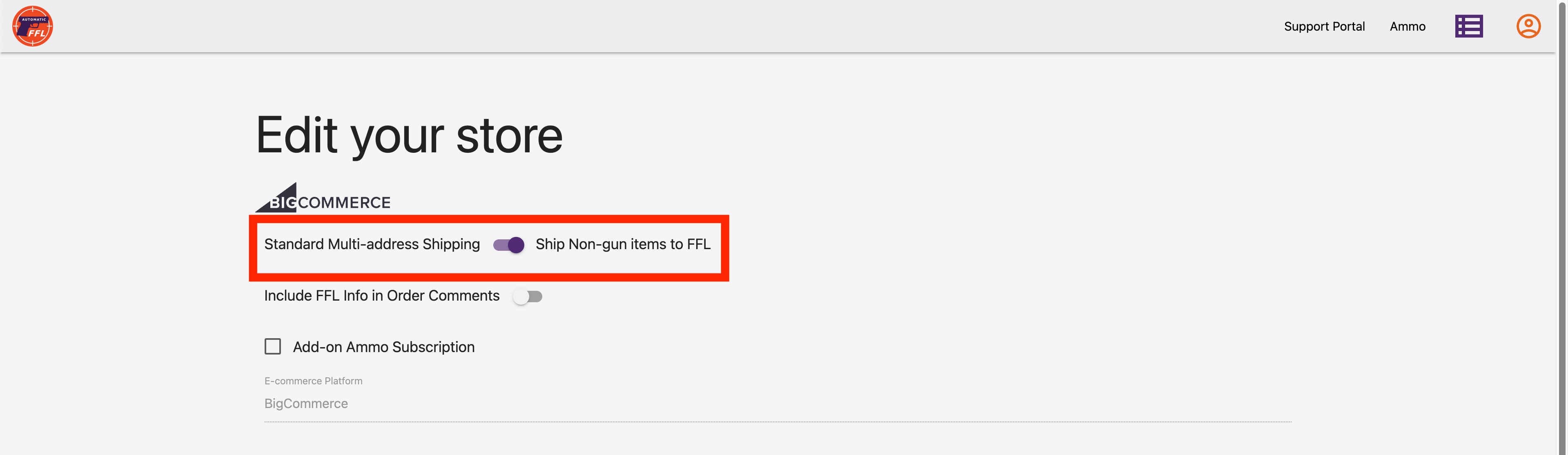
Use this setting when a mixed cart should send both restricted and non-restricted items to the selected FFL dealer.
- BigCommerce: Edit your store in the Automatic FFL dashboard and turn on Ship Non-gun items to FFL.
- Shopify: When restricted ammunition requires an FFL, Automatic FFL sends the full order to the selected dealer automatically.
Shopify does not use the BigCommerce dashboard toggle.
Add FFL Information to Orders
BigCommerce, WooCommerce, and Shopify
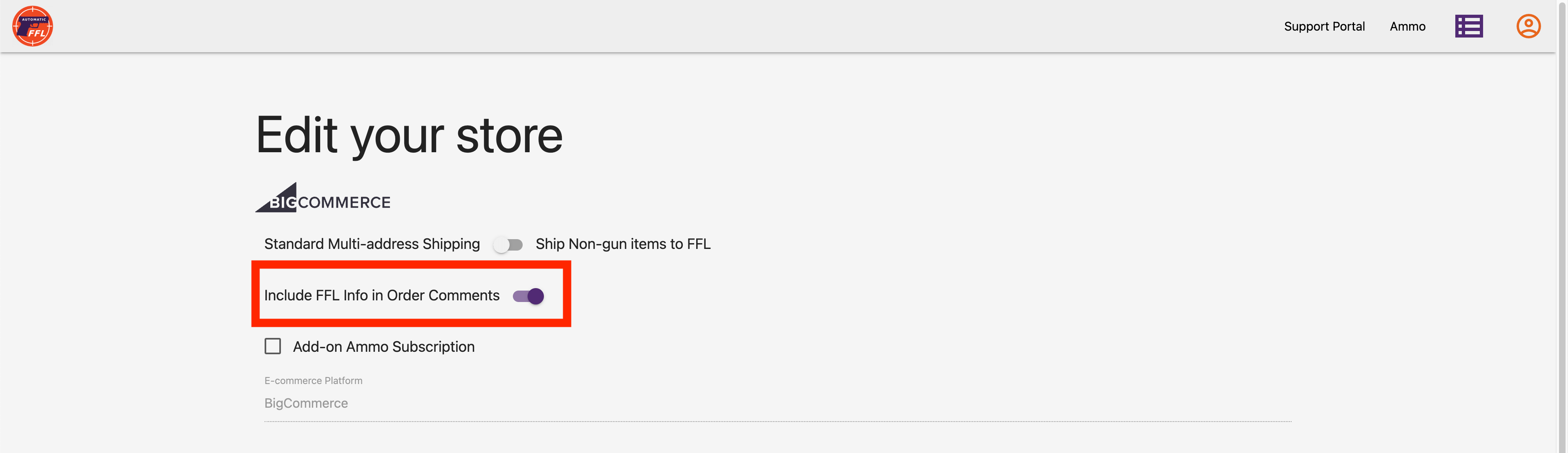
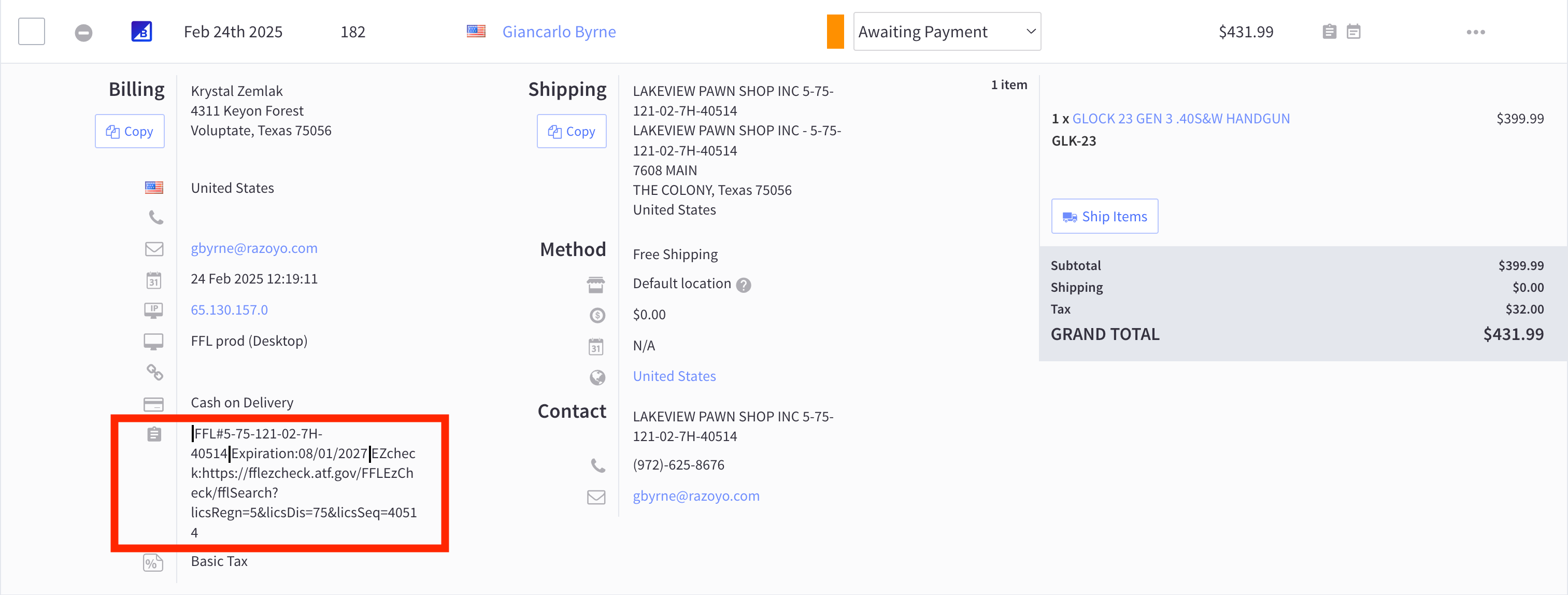
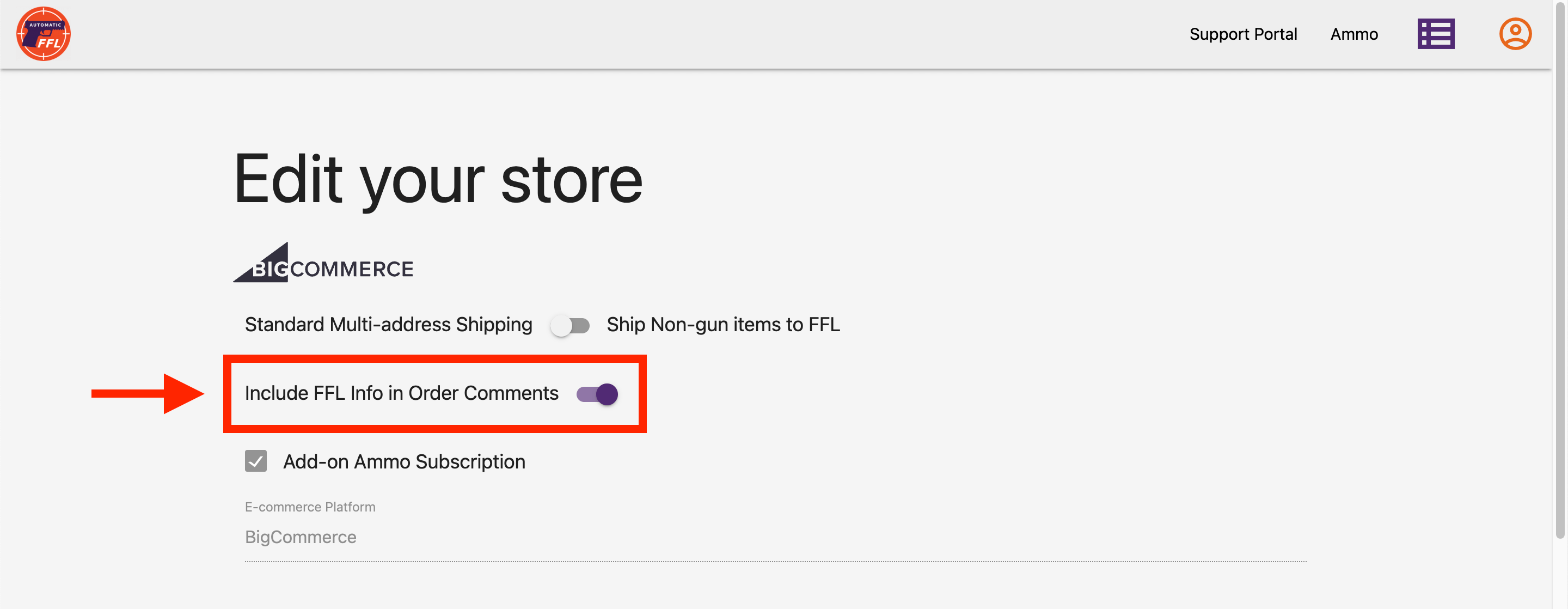
BigCommerce merchants can turn on Include FFL Info in Order Comments to add the selected dealer’s information to FFL-required orders. This is especially helpful for integrations such as Flxpoint.
WooCommerce adds comparable information to the order note automatically. Shopify adds it to the order note and Automatic FFL order metafields automatically; those platforms do not use the BigCommerce dashboard toggle.
Information Added
- FFL License Number
- FFL Expiration
- ATF eZ Check Link
- FFL certificate link (if available)
Bypass Feature
BigCommerce only
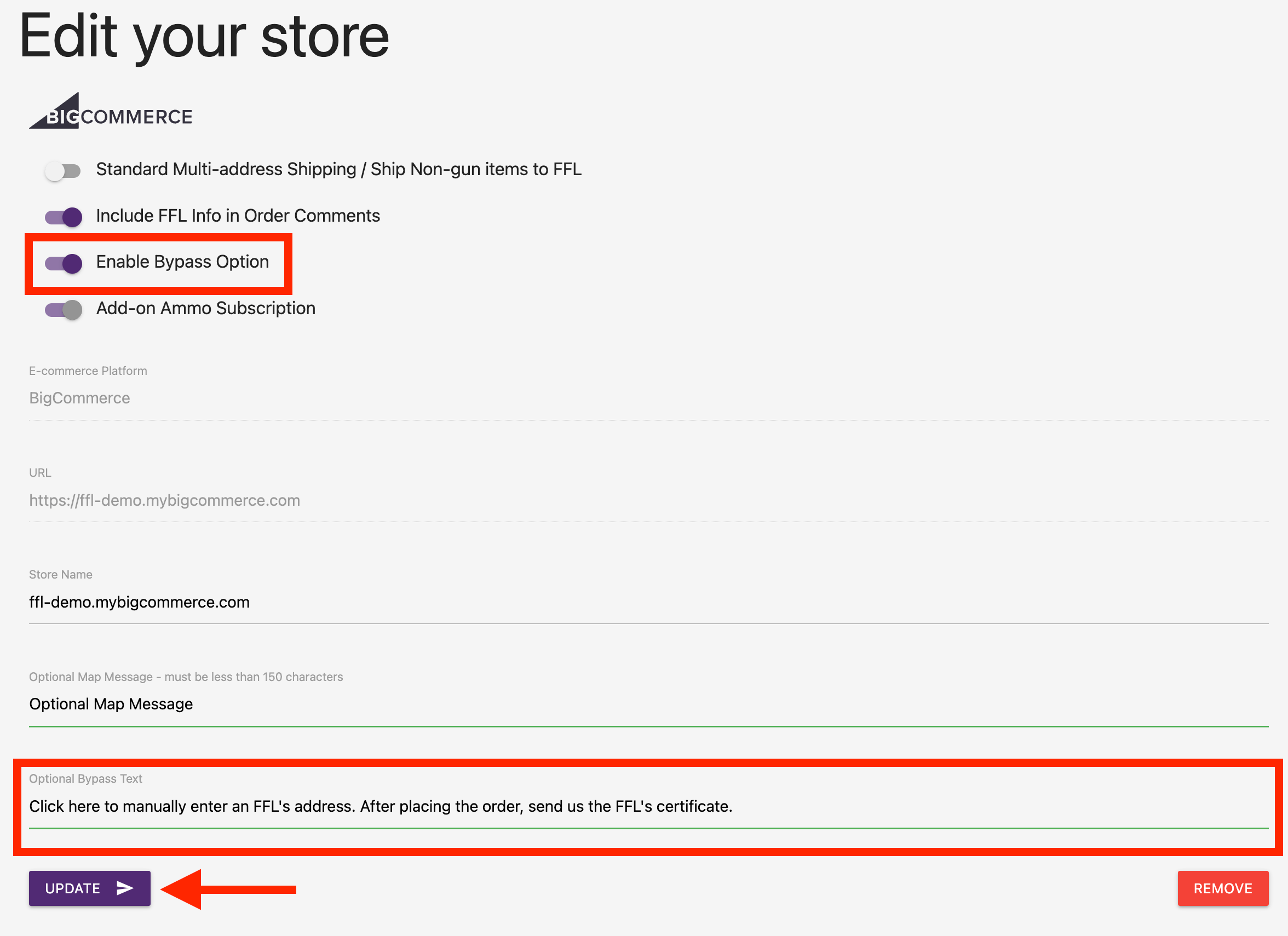
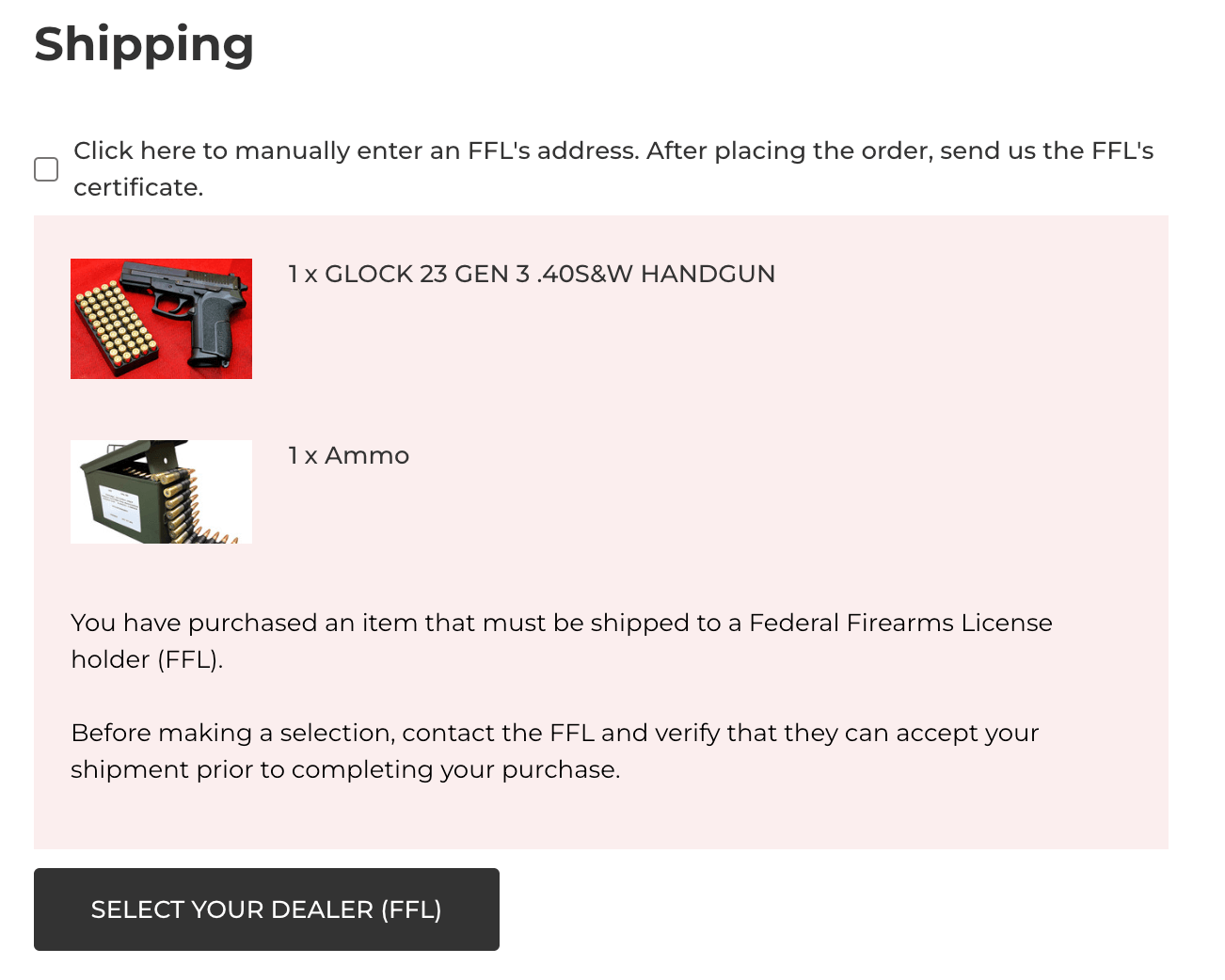
To allow your customers to optionally choose if they’d like to skip the FFL selection process and manually send you their FFL’s certificate/information, toggle on the Bypass Option and use the default message or insert your own.
Optional: Change the FFL Shipping Recipient Name
BigCommerce only
By default, each dealer-bound FFL shipment uses the customer’s first and last name. If that is what you want, no action is needed.
Turn on Use a custom shipping recipient only when you want every FFL shipment to use either:
- A fixed first and last name, such as FFL Receiving.
- The selected dealer’s business name as the recipient name.
- Open the Automatic FFL dashboard and click Edit on your BigCommerce store.
- Turn on Use a custom shipping recipient.
- For a fixed name, enter both the first and last name. To use each selected dealer’s business name instead, leave both fields blank.
- Click Update.
This affects only the dealer-bound FFL shipping address. Billing and non-FFL shipping addresses are unchanged.
Remove Store / Subscription
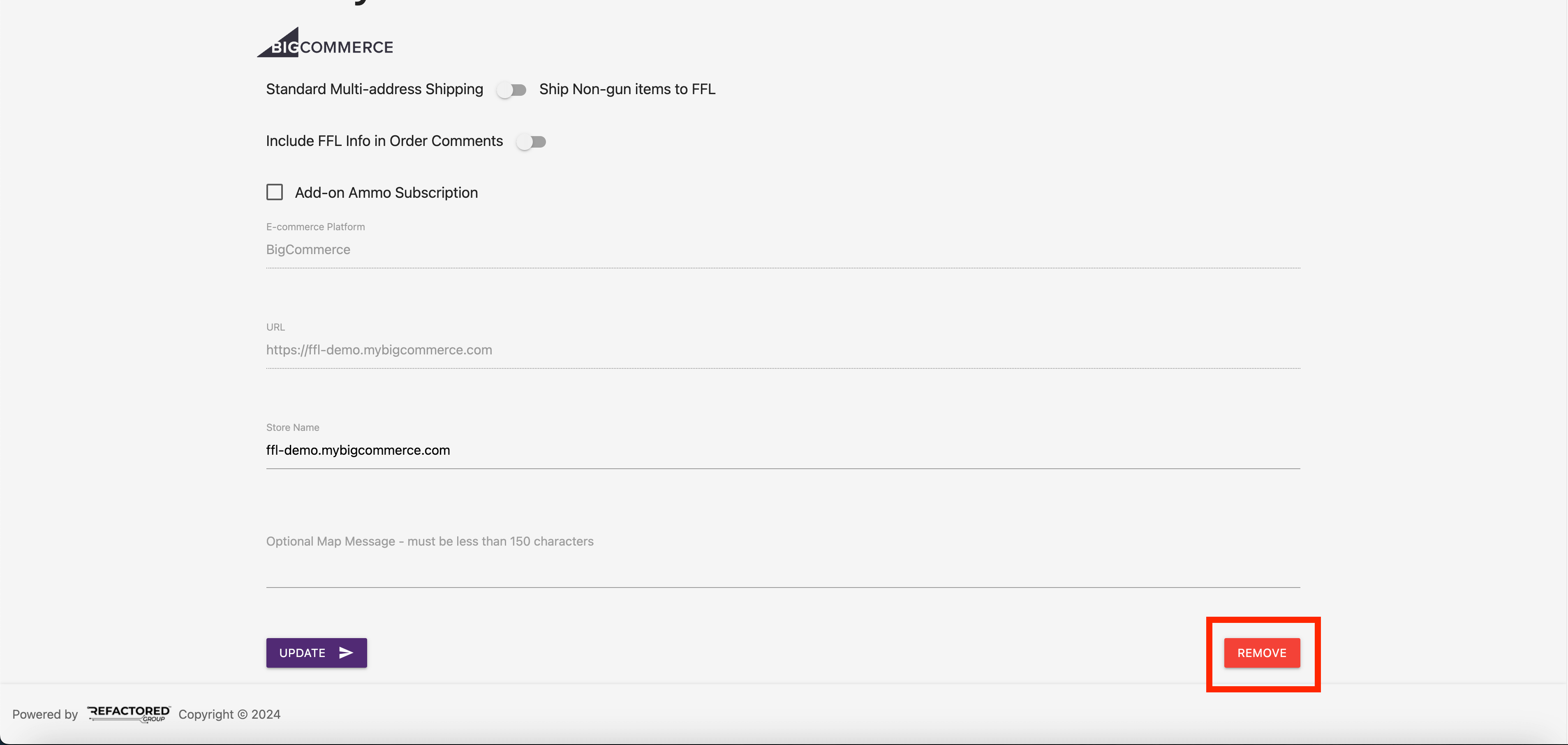
To cancel a store, edit your store and click on the “remove” button. It will stay active until the billing cycle is over.
Ammo
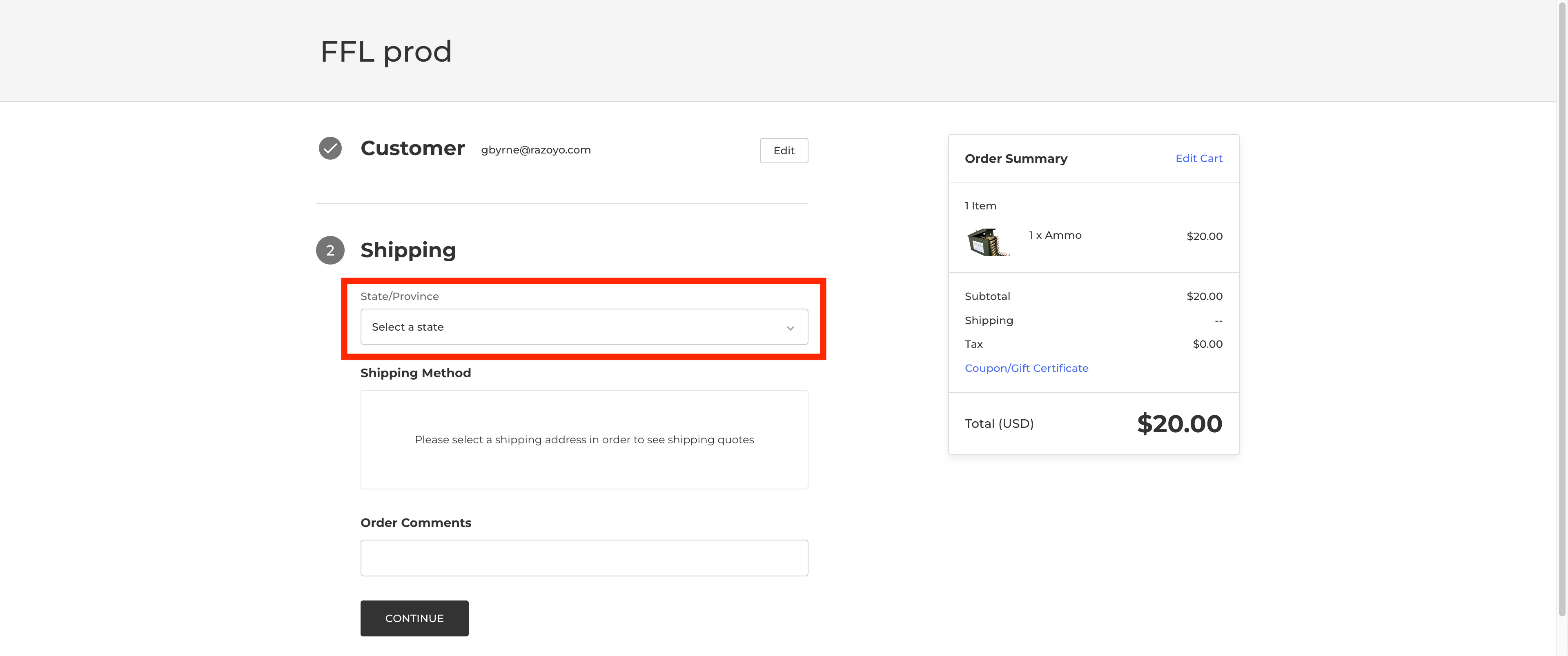
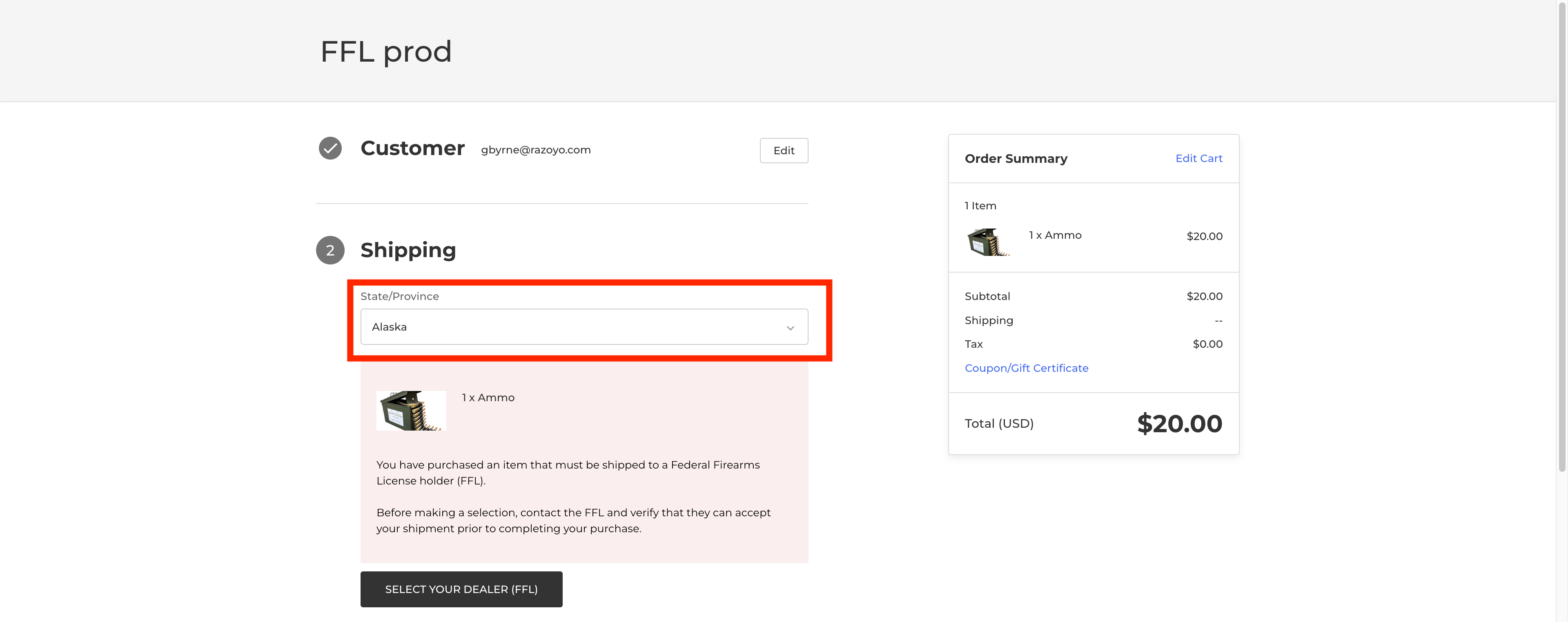
With Automatic FFL, you can require FFL shipments for ammo products on a state-by-state basis.
Enabling the Ammo Service
- Go to the Automatic FFL admin.
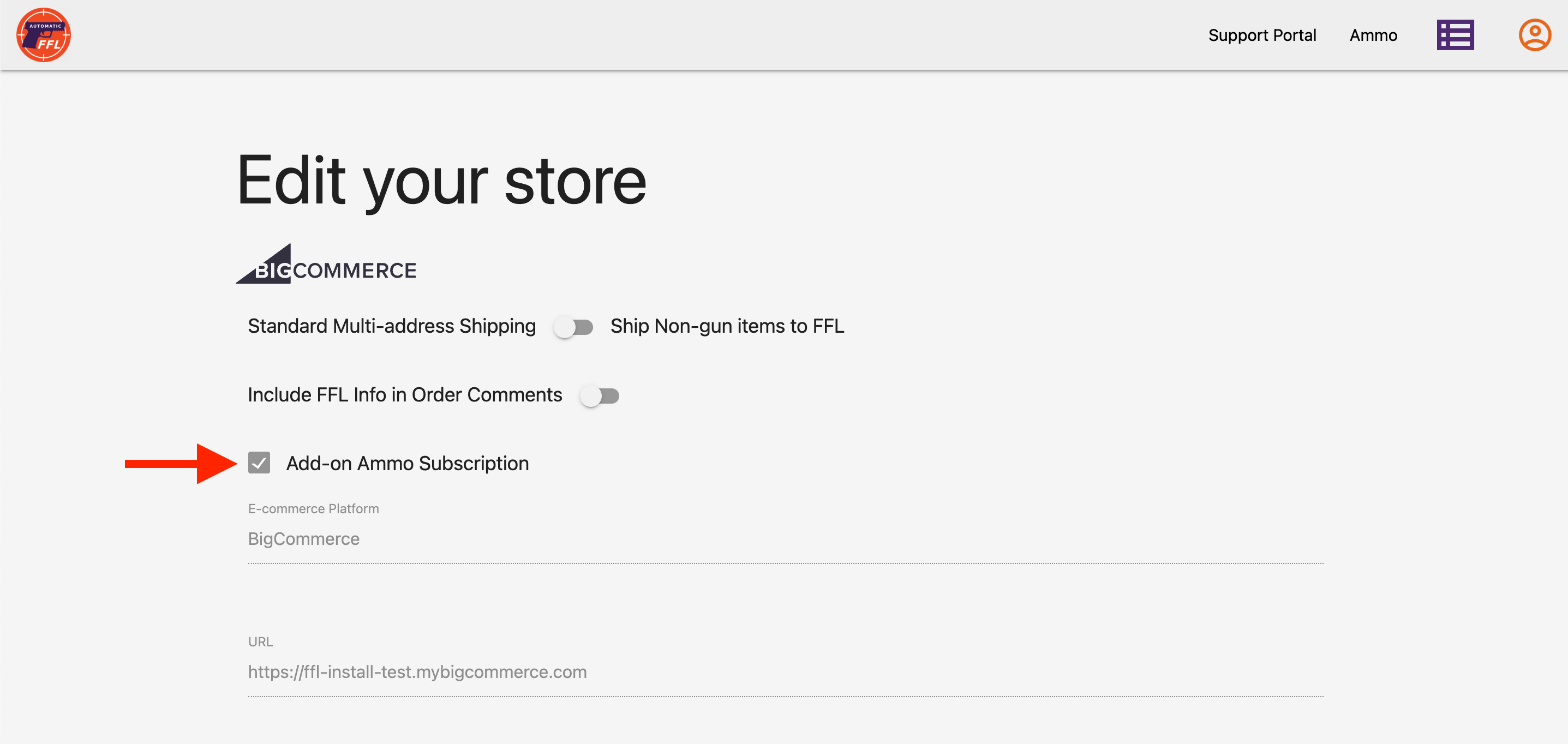
- Click “Edit” on your store.
- Check the box that says “Add-on Ammo Subscription” making sure to scroll down and click save. This will add the Ammo Subscription to your store. Please reference the pricing page for cost. If you’d like to sign up for just the Ammo Subscription but don’t need a Firearms Subscription, please contact support for help.
Setup
-
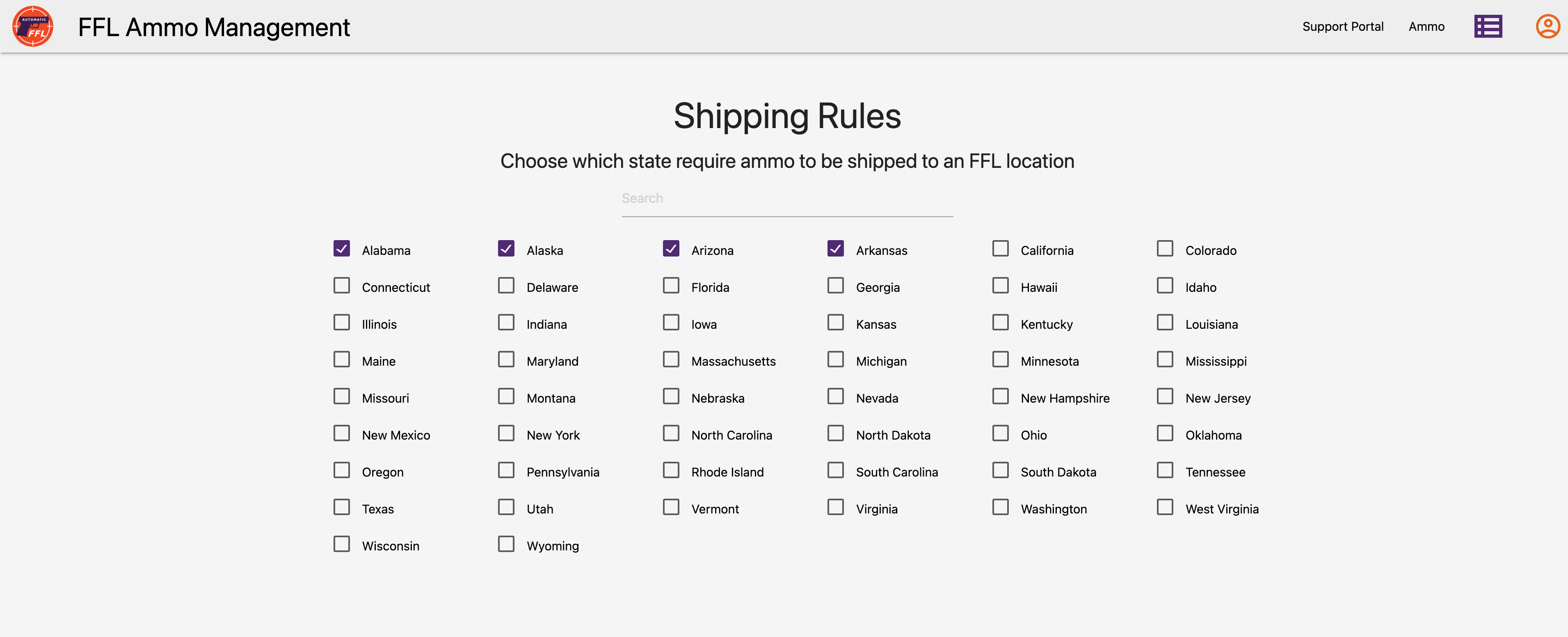
Within the Automatic FFL admin click on “Ammo” in the top nav.
-
Check the boxes for the states that you’d like to require an FFL shipment for. Changes will automatically save.
-
Assign your Ammo products by category from within your store’s setting page. You can get there by going to the Automatic FFL admin and clicking Edit on your store.
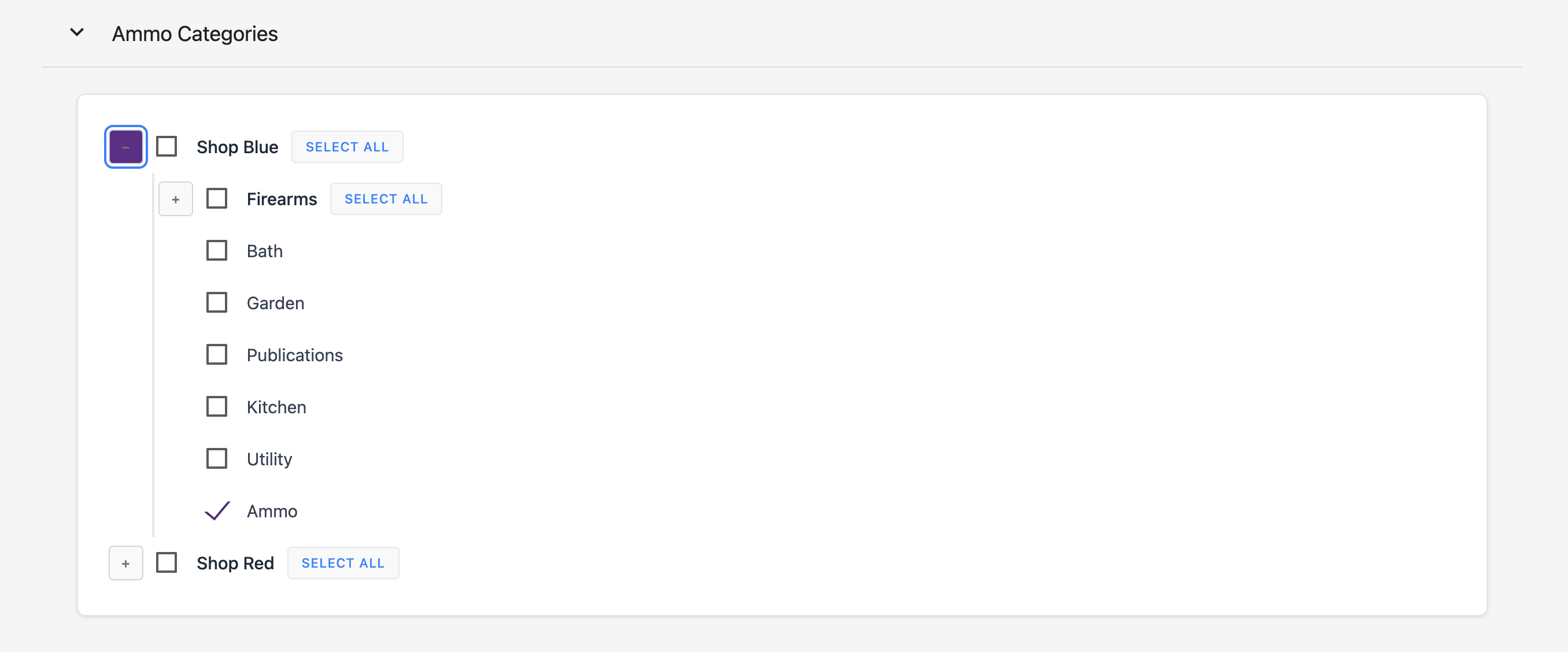
Marking products as Ammo on the product level (optional)
If you would rather mark products as Ammo on a product level, you can using BigCommerce’s bulk export/import feature, or by manual assignment. Add the custom field ffl_type with a value of ammo to your ammo products. This is not required if you already marked categories as ammo.
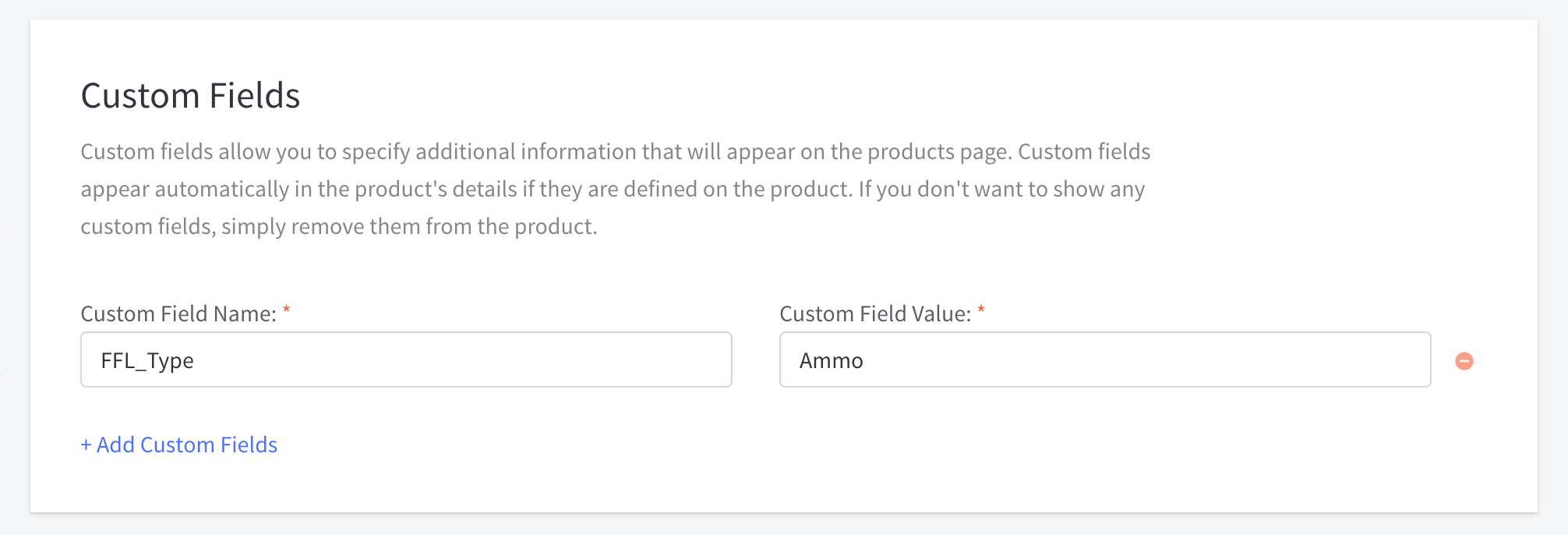
-
Once marked, Automatic FFL will handle the rest whether the ammo is in the cart by itself, or with any other items.
Flxpoint & Spark Shipping Integration
To integrate Flxpoint and/or Spark Shipping with Automatic FFL, enable the following setting on your store’s settings page.
Information Added
- FFL License Number
- FFL Expiration
- ATF eZ Check Link
- FFL certificate link (if available)
Using Flxpoint to automatically mark products as FFL-required
You can create rules using Flxpoint that will automatically mark your firearm and ammo products as such for Automatic FFL. Please refer to Flxpoint’s documentation on how to do so.
API
Storefront Dealers API
| GET | https://app.automaticffl.com/store-front/api/{storeHash}/dealers?location={location}&radius={radius} |
|---|
Parameters
| Name | Description |
|---|---|
| storeHash *required | unique identifier of a store |
| location *required | ZIP Code, City, or FFL name |
| radius *required | the radius around the location |
Responses
| Code | Description |
|---|---|
| 200 | Successful Operation |
| 400 | Bad Request |
Example
| GET | https://app.automaticffl.com/store-front/api/{storeHash}/dealers?location=75056&radius=30 |
|---|
{
    "dealers": [
        {
            "business_name": "LAKEVIEW PAWN SHOP INC",
            "enabled": true,
            "fees": [
                {
                    "amount": "$20.00",
                    "name": "Transfer fee"
                }
            ],
            "id": 48322,
            "lat": 33.1056168,
            "license": "5-75-121-02-4H-40514",
            "lng": -96.891109,
            "phone_number": "9726258676",
            "preferred": true,
            "premise_city": "THE COLONY",
            "premise_state": "TX",
            "premise_street": "7608 MAIN",
            "premise_zip": "75056",
            "schedules": [
                {
                    "day": "Mon-Sat",
                    "hours": "08:00-17:00"
                }
            ]
        },
        {
            "business_name": "JD ENTER",
            "enabled": true,
            "fees": [],
            "id": 143577,
            "lat": 33.0930603,
            "license": "5-75-121-01-6J-29471",
            "lng": -96.8951324,
            "phone_number": "9723706522",
            "preferred": false,
            "premise_city": "THE COLONY",
            "premise_state": "TX",
            "premise_street": "4521 QUEEN CIR",
            "premise_zip": "75056",
            "schedules": []
        },
        {
            "business_name": "MILLERS CUSTOM ARMORY",
            "enabled": true,
            "fees": [],
            "id": 113697,
            "lat": 33.0882969,
            "license": "5-75-121-01-5C-21374",
            "lng": -96.88951639999999,
            "phone_number": "2144359039",
            "preferred": false,
            "premise_city": "THE COLONY",
            "premise_state": "TX",
            "premise_street": "4812 STRICKLAND AVE",
            "premise_zip": "75056",
            "schedules": []
        },
        {
            "business_name": "DRUMM, JAMES A II",
            "enabled": true,
            "fees": [],
            "id": 48172,
            "lat": 33.1140446,
            "license": "5-75-121-01-5E-14910",
            "lng": -96.92013779999999,
            "phone_number": "2147186431",
            "preferred": false,
            "premise_city": "THE COLONY",
            "premise_state": "TX",
            "premise_street": "3048 MITCHELL WAY",
            "premise_zip": "75056",
            "schedules": []
        }
    ]
}