




Selling Firearms Online on BigCommerce, WooCommerce, or Magento: What Does the Checkout Need?
What a firearms checkout has to do on BigCommerce, WooCommerce, and Adobe Commerce / Magento: dealer selection, order data, mixed carts, and setup differences.
Giancarlo Byrne
10/26/2026
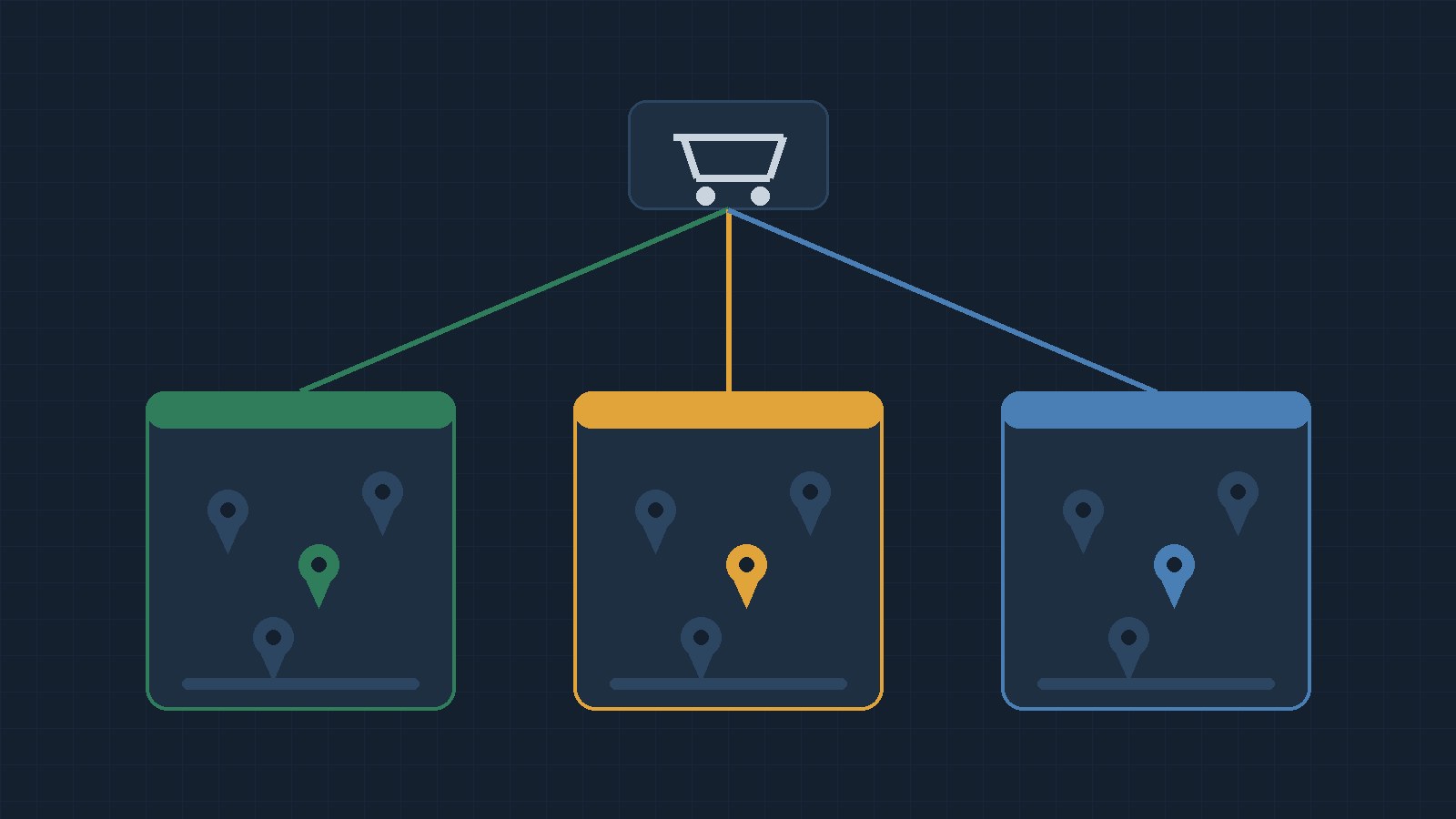
If you sell firearms online on BigCommerce, WooCommerce, or Magento, what does your checkout actually need to do? The short answer: it has to send each gun to a licensed dealer the buyer picks, not to the buyer’s home, and it has to keep that dealer’s license details with the order so your team can check them before anything ships. Below: the federal starting point, the jobs a firearms checkout has to handle, and how each platform handles them with Automatic FFL. It is general information, not legal advice. For questions about your own store, talk with a firearms attorney.
Why firearms can’t use a normal checkout
Two federal rules shape every online gun order.
First, a licensed dealer can’t ship a firearm across state lines to someone who isn’t a licensee. 18 U.S.C. 922(a)(2) makes it unlawful for a licensed importer, manufacturer, dealer, or collector “to ship or transport in interstate or foreign commerce any firearm to any person other than” another licensee, with narrow exceptions such as returning a firearm to the person it came from.
Second, a licensee can’t sell or deliver a firearm to someone it knows or has reasonable cause to believe doesn’t live in the licensee’s own state. That’s 18 U.S.C. 922(b)(3).
There’s also a paperwork step on the sending side. Before you ship to another licensee, 27 CFR 478.94 expects you to verify that licensee, normally with a certified copy of their license. We covered that in detail in How to Verify an FFL Before You Ship a Firearm.
Put together, this is why online gun stores ship the firearm to an FFL the buyer chooses, and the buyer completes the transfer there. Running that transfer is the receiving dealer’s job, not the online seller’s.
Five jobs a firearms checkout has to handle
The list below is our own working list, drawn from the rules above. It is not an ATF checklist.
- Know which products need an FFL.
- Collect a receiving dealer instead of a home address for those items.
- Keep the dealer’s license data with the order so your team can do its verification before shipping.
- Handle mixed carts, where a buyer orders a gun plus items that can ship home.
- Apply your own state rules, such as which states you treat as requiring ammunition to ship to a dealer. With Automatic FFL, you pick those states; the software doesn’t decide them for you.
What’s the same on all three platforms
On BigCommerce, WooCommerce, and Adobe Commerce / Magento, Automatic FFL adds an interactive dealer map at checkout. You control which dealers are Enabled and which are Preferred. Dealer listings can show transfer fees, store hours, and “Residential Address” labels.
By default, Automatic FFL enables all type 1, type 2, and type 7 FFLs, minus big-box stores, and you can change that list. Ammunition is flagged separately from firearms.
When an order is placed, the selected dealer’s license number, expiration date, ATF eZ Check link, and certificate link (when one is available) go on the order. Certificate links appear only while the certificate is valid and unexpired. That data helps your team, but it doesn’t replace getting the certified copy the regulation describes.
BigCommerce
On BigCommerce, Automatic FFL is an app from the BigCommerce App Store. Setup has three parts: install the app, paste the Automatic FFL checkout script URL into Settings, then Checkout, then Custom Checkout, and mark which products need an FFL, either by category in the Automatic FFL dashboard or with an ffl_type custom field on each product.
A few things to know before you start:
- One custom checkout script per store. BigCommerce supports a single custom checkout script, so if you already run one, you would swap to Automatic FFL’s. Anything that requires a different custom checkout isn’t compatible.
- Optimized One-Page Checkout works through the custom checkout script flow.
- No Google Maps API key needed. The dealer map is hosted by Automatic FFL.
- Multi-storefront: the app listing notes it “may not be fully compatible with multi-storefront,” so check with support if you run several storefronts.
Mixed carts are the cleanest here. BigCommerce supports multiple shipping consignments on one order, so FFL items route to the chosen dealer and other items ship home in one checkout, one order, and one payment.
BigCommerce also has features the other two platforms don’t: in-store pickup using native BigCommerce locations, a Bypass option that lets a buyer skip dealer selection and send their FFL’s information to you manually, a custom FFL shipping recipient name, routing ammo with firearms, and a toggle to include FFL info in order comments.
WooCommerce
On WooCommerce, Automatic FFL is a WordPress plugin. It works with both the classic WooCommerce checkout and the block-based checkout. In classic checkout, the chosen dealer replaces the shipping address for the restricted items.
Setup includes your Automatic FFL store details and a Google Maps API key, which you generate in the Google Cloud console under your own Google account. Plan for both.
Mixed carts work differently from BigCommerce. WooCommerce doesn’t natively ship one order to two destinations, so Automatic FFL uses a Save For Later flow. The buyer checks out one group of items, then gets the second group as a follow-on checkout, in either order. That means two checkouts, not one order split two ways.
Dealer information is added to the WooCommerce order notes automatically, with no separate setting to turn on.
Adobe Commerce / Magento
On Adobe Commerce and Magento Open Source 2.4, Automatic FFL is an extension on the Adobe Commerce Marketplace. This one needs a developer: the extension installs with Composer. After that, you create your Automatic FFL store, connect Magento with your Store Hash and Store Secret, add a Google Maps API key, mark products, and run a test checkout. The Magento installation guide walks through it.
Products are marked by assigning categories as Firearms or Ammo, or with an “FFL Required” product attribute. If both are set, the category setting wins.
Two checkout options aren’t supported: turn off Instant Purchase, and on Adobe Commerce, AsyncOrder. If your store uses a custom checkout or theme, contact Automatic FFL before you install.
Mixed carts use Magento’s multiple-address checkout, which creates a separate order for each destination. Shoppers need to sign in or create an account to use it. You can also choose to send non-gun items to the selected FFL along with the firearm.
Order data lands in an “FFL Dealer Information” table under Sales, then Orders, and in the order comments.
Which one fits your store?
The platform you already run usually decides this. The practical differences come down to three questions.
- How do you want mixed carts to work? One order on BigCommerce, two checkouts on WooCommerce, separate orders on Magento. Our mixed FFL carts post goes deeper.
- Who handles setup? BigCommerce and WooCommerce are a standard setup with no developer required for a typical install. Magento needs a developer for the Composer install.
- Is your checkout already customized? A custom BigCommerce checkout script, a custom Magento checkout or theme, Instant Purchase, or AsyncOrder all need a look before you switch anything on.
Whatever you pick, run a test order with a firearm, an accessory, and a mixed cart before you go live, and confirm the dealer details show up where your shipping team will look for them.
Try it on your own store
Look up a transfer dealer for free. Create a free Automatic FFL account to search FFL dealers by license number, name, city, state, or ZIP, open each dealer’s ATF eZ Check record, and see which dealers have certificate data on file. Start with the FFL database. The database is not legal advice and does not replace your own compliance review.
Try Automatic FFL free for 30 days. Add FFL dealer selection to your checkout. You’re not charged until the trial ends, and you can cancel before then. Plans start at $99 per site per month after the trial (pricing).
Sources
- 18 U.S.C. 922 · 27 CFR 478.94
- Automatic FFL: BigCommerce · WooCommerce · Magento · documentation